


iTunes Music Download - 3 Ways to Download Music from iTunes for Free
Last Updated on September 20, 2025 by Jane Joe
In today's digital age, having access to your favorite music anytime is essential for many music lovers. Whether using a computer or an iPhone, iTunes provides a seamless way to manage and enjoy your music library. However, downloading music from iTunes to your device can sometimes be a little confusing if you're unfamiliar with the process. This comprehensive guide will walk you through the steps to download music from iTunes to your computer and iPhone, ensuring you can enjoy your music wherever you go.

Part 1: How to Download Purchased Music from iTunes to Computer
When you download purchased music from iTunes, a local copy is stored on your device. This ensures that you can always access your music, even if the song or album is deleted from the iTunes Store or you lose Internet access. To download music from iTunes on your computer, you first need to make sure you have the latest version of iTunes installed on your computer.
Step 1: Launch iTunes on your computer. To download purchased music, you must log in with your Apple ID, which will allow you to access a range of data about your account, including the music you have purchased.
Step 2: Navigate to the Music section of iTunes in the upper left corner of the homepage, then switch to the Store tab. To view purchased music, you need to click the Music button in the lower right corner of the page. A shortcut menu will pop up, where you can select Purchased.
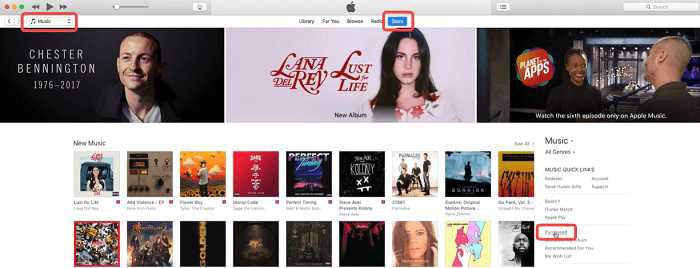
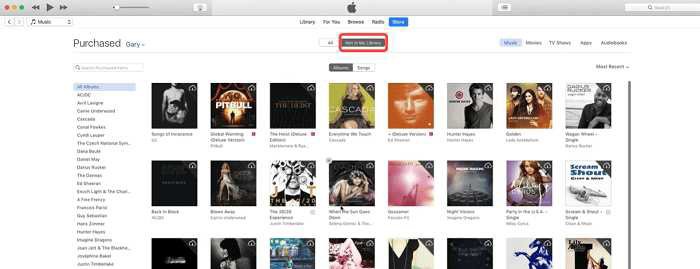
Step 3: Among all the purchased music, select Not in My Library. Here are all the music and albums you haven't downloaded. Select the music you want to download and save and click the Download icon in the upper right corner. At this time, this music will be saved from iTunes to your computer.
Part 2: How to Download Music from iTunes to iPhone
Most of the time, you may need to listen to music on your computer, but the disadvantages are also very obvious. The size is large and very inconvenient. But this does not mean that you can't listen to music on iTunes by using iPhone. Music in iTunes can be synchronized with iPhone music at the same time. You can download music from iTunes to your iPhone by following the steps below.
Step 1: Make sure you have the latest version of iTunes installed on your computer and the iPhone's iOS is the latest. Use a USB data cable to connect your iPhone to the computer. At this time, iTunes may start automatically. If iTunes does not, open it.

Step 2: In iTunes, find and click your iPhone icon. It will appear near the upper left corner of the iTunes window. At this time, click the Music button in the menu on the left, select Sync Music in the pop-up dialog box, and click the Sync button to automatically synchronize the entire music library.

Step 3: You can now select the music you want to download to your iPhone from iTunes. Switch to Library in iTunes to view all your music. Then select the music you want and drag it directly to the iPhone icon on the left sidebar of the page. You will be able to successfully listen to iPhone music on iTunes.
Part 3: How to Download Music to iTunes for Free
Most of the music downloaded on iTunes is stored in AAC format, which means that it can only be played on these specific devices, especially Apple's series of products, which is very unfavorable for music sharing and dissemination. In this comparison, downloading music to iTunes through a third-party music downloader will have more advantages. CleverGet is a software application designed for downloading online videos and music from various platforms. It supports various websites and provides a convenient way to save content for offline use.
1. Supports downloading music from various websites, including YouTube, SoundCloud, Vimeo, etc.
2. Download music with high quality while retaining the original sound fidelity.
3. Can download multiple music files at the same time.
4. Customize the download quality, file format, etc.
Step 1: Download CleverGet on your computer and install it. After successful installation, launch the software. Before using it, click the 3-dots icon in the upper right corner of the page. In the shortcut menu that appears, click the Setting button. A dialog box will pop up. In the dialog box, you can set the Language, Appearance, and other settings of the software.

Step 2: Download music from iTunes, as long as it can play music normally. On the homepage of the software, there is a URL box. Enter the URL of the music you want to download. At this time, you will be able to directly enter the music playback page. When the music is playing, the software will automatically detect the music resources available for download and provide download options.

Step 3: In the pop-up dialog box, you can select the storage format and size of the music. After selecting successfully, click the Download button to add iTunes music to the download list. When the music is downloading, you can view it in Downloading in the Library on the right side of the page. After the download is successful, you can play it in Audio.

Part 4: FAQ of Downloading Music from iTunes
Conclusion
Downloading music from iTunes to your computer or iPhone is a simple process once you understand the steps involved. By following the instructions outlined in this guide, you can effortlessly transfer your favorite songs and albums to your device, allowing you to enjoy your music offline and wherever you go. Whether you're preparing for a long trip, organizing your music library, or just want to have your favorite tracks readily available, this guide will ensure you can make the most of iTunes and your music collection.