


Ways and Steps— Recover Formatted Hard Drives Data on Computers
Last Updated on September 20, 2025 by Yulia Ilina
Formatting can clear all the data in the hard drive indiscriminately, allowing you to get a brand new hard drive, but accidental formatting may cause you to lose important belongings. Formatted data is more difficult to recover than ordinary deletion. It cannot be easily recovered from the recycle bin, and it is irreversible. But don’t worry, this article provides you with the 3 easiest methods to help you perform formatted hard drive recovery, please read on carefully.

Part 1: Recover Files from Formatted Hard Drive Free
Windows File Recovery is an official tool to recover deleted files from hard drives, SD cards, USB drives, and other storage media. Similar to the CMD tool, it also recovers files through the command line environment, but what is very special is that it can recover files in formatted and damaged disks under the NTFS file system. So using it, you can recover files from formatted hard drives for free.
Step 1: Enter Windows File Recovery in the search box below the desktop, select it in the program that appears, and some ribbons will appear on the right side of the page. Select Run as Administrator to launch the program run dialog.

Step 2: Enter winfr source-drive: destination-drive: [/mode] [/switches] in the command line page, where source-drive is the formatted drive, destination-drive is the storage location for file recovery, and mode is divided into There are three modes, and the formatted hard disk uses Extensive so that it can deeply scan the formatted hard disk and recover files.
Step 3: The last switches can be used to narrow the scope of file recovery and speed up the recovery of required formatted files. After entering the command line, click the Enter key to run the command line to scan the formatted hard disk. After a while, you will be able to view the successfully recovered files in the recovery location specified by the file.

Part 2: How to Recover Formatted Data from Hard Disk Using CMD
Using CMD to recover formatted files is a more professional method in Windows systems. Using CMD can find data that has been formatted for a long time.
Step 1: Use Win+X keys or right-click the Start icon to summon the function menu, and click the Search button in the function menu to open the search box. Enter Command Prompt in the search box, the corresponding function will appear, right-click it, and select Run as Administrator in the options that appear to open the CMD run box.
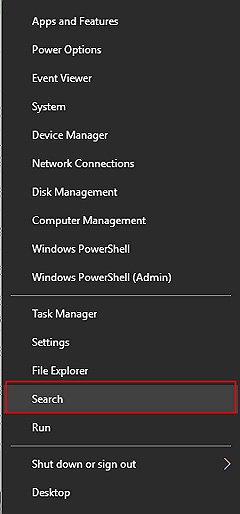
Step 2: Enter chkdsk F:/f on the page, where F represents the formatted drive letter. After the input is complete, click the Enter key to start running this command. While running, type Y to continue scanning the formatted hard drive, then type the F key again to run the command.

Step 3: After the command is completed, enter attrib -h -r -s /s /d *.*, where * is the drive letter of the formatted hard disk. Use the Enter key to run this command. After successful operation, the files in the formatted hard disk can be recovered and saved in .chk format.

Part 3: How to Recover Data from a Computer Hard Drive
The methods provided above, whether it is CMD or through Windows File Recovery to restore files, you can only restore the files that have just been formatted. Once the formatted hard drive has begun to store a large number of files, it proves that the previous file fragments have been overwritten, and the difficulty of recovery reaches its peak. At this time, you need professional data recovery software to recover files from the formatted hard disk, and Aiseesoft Data Recovery is a very good choice. Aiseesoft Data Recovery is a software that provides data recovery options by deeply scanning formatted hard drives.
1. Automatically detect storage devices connected to the computer and provide an area scanning function.
2. Recover various types of data, including videos, photos, audio, documents, etc.
3. Preview recoverable files and save unnecessary files from recovery.
4. The filter function can directly search and find the files that need to be recovered.
Step 1: Download and install Aiseesoft Data Recovery, start the software, and you will be able to see the data types that the software can support recovery. Formatting is for all data types, so when restoring formatted hard drive data, you can directly click the Check All File Types button to select all file types.

Step 2: Select the formatted hard drive before starting the scan. After the external hard drive is successfully connected to the computer, you can view it in Removable Drives. The built-in hard disk does not need to be connected separately, just select it directly in Hard Disk Drives. Click the Scan button to start scanning the formatted hard disk.

Step 3: After Quick Scan on the formatted hard disk, there will still be many files that have not been detected. You can click the Deep Scan button to get more content. In the left sidebar, you can directly select all the files, click the Recover button, and the formatted hard drive files can be recovered.

Conclusion
The files in the formatted hard disk can be recovered through the three methods in the article, and you can choose one of the methods according to your personal needs. After many attempts, you will find that if you want to deeply recover files in formatted hard drives, you still need professional data recovery software Aiseesoft Data Recovery to help you. Because this powerful formatted hard drive recovery tool can provide the most detailed file recovery list, it is worth your try and use.