


[Guide] It is Possible to Recover Data from a Damaged/Corrupted Hard Drive
Last Updated on September 20, 2025 by Yulia Ilina
As the main medium for data storage, hard disks are often used to store data. After a long period of use, hard disks will inevitably become damaged or corrupted. But recovering data from a damaged hard drive can be a complex and challenging process. To better help you recover data from a damaged hard disk, this article will provide you with 3 methods to help you, and at the same time answer common questions about recovering corrupted hard drive data.

Part 1: How to Recover Data from Corrupted External/Internal Hard Disk
Method 1: Disk Management Tool
When recovering data from a damaged external hard drive, you need another computer to use the disk management tool to scan the damaged hard drive and perform data recovery.
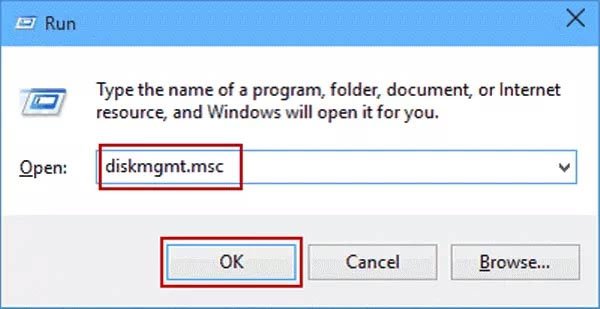
Step 1: Connect the external hard disk to another computer that is running normally through USB, and use the Windows+R combination key to summon the run box. Enter diskmgmt.msc in the run box and click the OK button to directly enter the disk management tool of Windows.
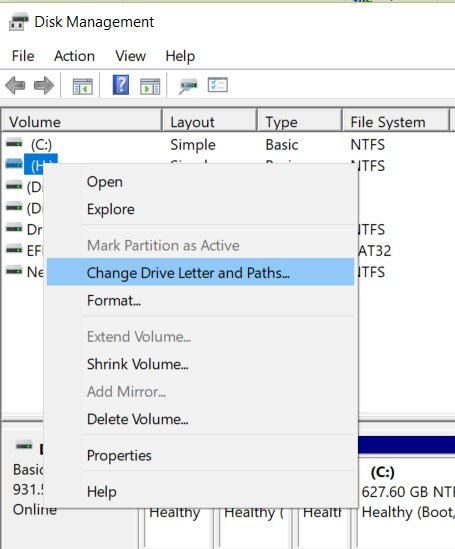
Step 2: In the disk management tool, select the SSD hard disk you need to recover data from and right-click to bring up the corresponding shortcut menu. Click the Change Drive Letter and Paths button in the shortcut menu, and 3 options will appear to help you modify your external hard drive.
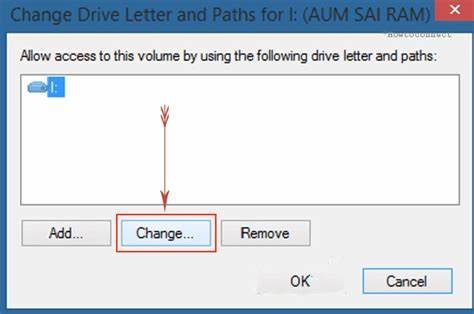
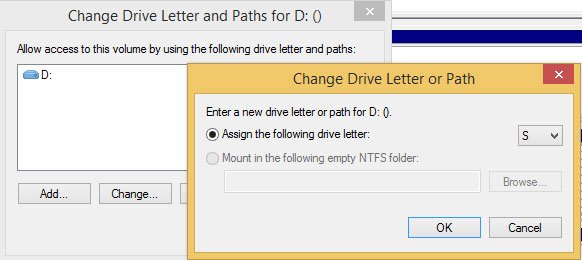
Step 3: Select Change among the 3 options, select the drive letter in the list that appears, and click the OK button to assign a new drive letter to the damaged hard drive. A brand new drive will most likely boot better, at which point you will be able to regain access and recover data from the corrupted external hard disk.
Method 2: Run the CMD tool
For damaged hard drives, most of the time, you will format the hard drive to clear all data and delete harmful data, repair the hard drive, and restore the normal operation of the damaged hard drive, but you will also permanently lose the data in the damaged hard drive. data. Without formatting, you can restore data on a damaged hard drive through CMD in Windows.
Step 1: Start your computer, click the Start icon on the desktop, enter CMD in the search box to find Command Prompt, and right-click it to summon the shortcut menu. Select Run as administrator in the shortcut menu, and a running window will appear to provide you with more content.

Step 2: Enter chkdsk '*' /f in the window, where * represents the hard disk drive symbol, click the Enter key to run this command line. At this point, Windows will scan and repair the damaged hard disk. If you want to locate the inaccessible files more accurately, you can run "C:\WINDOWS\system32>chkdsk F: /F /X /R, where /X represents corresponding folder, and /R represents the is the corrupted file above.

Step 3: After running successfully, you can directly repair the external hard disk and restore the files from the damaged hard disk.
Part 2: Restore Data from Damaged Hard Drive by Data Recovery Software
When you cannot restore the files in the damaged hard disk through CMD in Windows, you may choose to format the files to repair the hard disk, but this is not the last solution, you can use data recovery software to restore the data in the corrupted. Aiseesoft Data Recovery is software designed to recover lost or damaged data from various storage devices, including hard drives.
1. Designed to recover a variety of file types, including documents, photos, videos, audio files, emails, and more.
2. Provides an intuitive user interface that makes the recovery process easy to understand and navigate.
3. Selectively recover specific files or folders instead of recovering the entire content of the damaged hard drive.
4. Deep scan delves deeper into the drive to recover files that might be harder to locate.
Step 1: Install and start Aiseesoft Data Recovery on your computer. After the startup is successful, make sure that the corrupted hard drive is connected to the computer. After the connection is successful, the internal hard drive can be viewed in Hard Disk Drives, and the external hard drive can be viewed in Removable Drives to view.
Step 2: After selecting the damaged hard drive, click the Check All File Types button to comprehensively detect various types of files. Click the Scan button to start scanning the damaged hard drive. After the Quick Scan finishes, you will be provided with a list of available downloads.

Step 3: If you want to dig deep into all recoverable files, click the Deep Scan button. After the deep scan is completed, you can directly select all files in the file directory on the left. Click the Recover button to restore the selected files in the damaged hard drive.

Part 3: FAQs about Recover Damaged/Corrupted Hard Drive Data
Conclusion
Continuing to use a damaged drive can lead to further data loss as new data is written over existing data. So, when you find that the hard disk is damaged, stop using it as soon as possible to better preserve the integrity of the data. To restore the data in the corrupted hard drive more comprehensively, choosing to use Aiseesoft Data Recovery can help you restore the data in the damaged hard drive in the fastest and most comprehensive way.