


What Is the Best FLV Viewer to Browse FLV Videos
Last Updated on May 29, 2026 by Rhea Cabalida
FLV files still appear in old downloads, archived videos, and exported web content. However, modern web browsers and native operating systems no longer treat FLV as a standard playback format.
To keep up with modern workflows, a dependable FLV viewer needs to do more than just play a file without error; it must help you seamlessly browse, organize, and manage these legacy formats alongside modern media without technical friction.
If you simply need to play a standalone clip, a few universal media players can easily get the job done. But if you need to manage deep directories using thumbnail browsing, folder-based previews, and mixed-media organization, choosing the right FLV viewer matters even more.

In this Article:
- Why FLV Still Needs a Viewer
- Older FLV Players Are No Longer the Best Starting Point
- WidsMob Viewer Pro: Best for Browsing and Organizing FLV Files
- VLC Media Player: Best Universal FLV Player
- KMPlayer: Best for Advanced Playback Features
- Quick Comparison of the Best FLV Viewers
- Should You Convert FLV Files Instead?
Why FLV Still Needs a Viewer
FLV remains common in older video archives and downloaded web media, but FLV no longer fits into a modern ecosystem. A modern FLV guide should help readers open old files, browse media folders, and avoid outdated playback methods.
When evaluating these tools, we found that most users are not looking for advanced editing. Instead, they are most likely to:
- Open old FLV files without codec issues
- Browse videos alongside photos and other media
- Preview thumbnails before opening files
- Play FLV videos smoothly on Windows or Mac
- Convert FLV later if compatibility becomes a problem
That is why modern playback tools now matter more than old FLV-only software.
Older FLV Players Are No Longer the Best Starting Point
We highly recommend avoiding older FLV-only tools (such as Moyea or FreeSmith), which belonged to the Flash-video era. Those tools may still appear in old recommendation lists, but modern users usually get a better experience from actively maintained players.
Most older FLV-only software now feels outdated because:
- Many programs no longer receive updates
- Some tools rely on old Flash-era assumptions
- Modern players already support FLV playback
- Security and compatibility support may be limited
Operating outdated code on modern platforms like Windows 11 or macOS Sonoma can expose your local operating system to unpatched system vulnerabilities. Stick exclusively to modern, actively maintained multi-format viewers.
That is why newer solutions like WidsMob Viewer Pro, VLC Media Player, and KMPlayer deserve more attention in the current FLV guide.
How We Evaluated These FLV Viewers
To compare modern FLV viewers, we focused on practical playback and browsing workflows
instead of synthetic benchmarks. Each application was evaluated using older FLV video
samples, mixed-media folders, and common desktop environments on Windows and macOS.
During testing, we looked at:
- FLV playback compatibility
- Thumbnail and folder browsing
- Subtitle handling
- Playback responsiveness
- Mixed-media organization
- Ease of opening older files without extra codecs
We also considered whether the software is still actively maintained, since many older
FLV-only tools are now outdated or no longer updated regularly.
WidsMob Viewer Pro: Best for Browsing and Organizing FLV Files
WidsMob Viewer Pro works best for users who want more than simple playback. Instead of acting like a basic standalone player, this program focuses on media browsing, folder management, thumbnail previews, and mixed-media viewing.

That workflow makes WidsMob especially useful for creators, archivists, and users managing large folders filled with videos, photos, screenshots, and downloaded media.
Why WidsMob Viewer Pro Fits Modern FLV Workflows
Unlike traditional FLV players, WidsMob Viewer Pro focuses on viewing media inside a larger folder structure. Users can quickly preview nearby files without opening separate windows or switching between apps.
WidsMob Viewer Pro supports:
- FLV, MP4, MOV, and M4V videos
- JPEG, PNG, HEIC, RAW, and other image formats
- Thumbnail-based media browsing
- Slideshow viewing
- Folder organization and quick previews
- Media management inside one interface
That combination makes WidsMob a practical solution for mixed-media libraries instead of a playback-only tool.
How to Open and Browse FLV Files with WidsMob Viewer Pro
Using WidsMob Viewer Pro is straightforward because the workflow focuses on quick browsing and previewing.
Step 1: Install WidsMob Viewer Pro
Download and install WidsMob Viewer Pro on Windows or Mac. Launch the program after installation finishes.
Step 2: Import Your FLV Files or Folder
Drag an FLV file or an entire media folder into the interface. WidsMob Viewer Pro automatically loads nearby videos and images for easier browsing.

Step 3: Preview and Manage Media Files
Start playback directly inside the viewer. Use thumbnail mode to move between files quickly and organize media folders more efficiently.
VLC Media Player: Best Universal FLV Player
VLC Media Player remains one of the safest choices for opening FLV files because VLC supports a massive range of video formats across Windows, Mac, and Linux.

Many users prefer VLC Media Player because installation is simple and playback usually works immediately without extra codecs. If your primary goal is simply watching a video from start to finish without configuration hassle, this is the tool to use.
Why VLC Media Player Still Works Well for FLV
During our evaluations, VLC successfully parsed and played unindexed H.263 and VP6 FLV streams where native operating system players completely failed. VLC Media Player also includes its own decoding libraries, which help improve compatibility with older media formats across different operating systems.
This is because it focuses on universal compatibility instead of media organization. Users who only want dependable playback often choose VLC Media Player because the software handles damaged files, streaming formats, subtitles, and uncommon codecs well.
Key strengths include:
- Broad video format support
- Cross-platform compatibility
- Subtitle support
- Playback speed controls
- Streaming support
- Lightweight installation
When VLC Media Player Is the Better Choice
Choose VLC if the goal is simple playback without extra media management features. VLC Media Player works especially well for users who occasionally open FLV files and do not need thumbnail browsing.
KMPlayer: Best for Advanced Playback Features
KMPlayer works well for users who want more playback customization and feature-heavy controls. KMPlayer supports FLV playback alongside modern formats and includes subtitle handling, streaming tools, and high-resolution playback support.
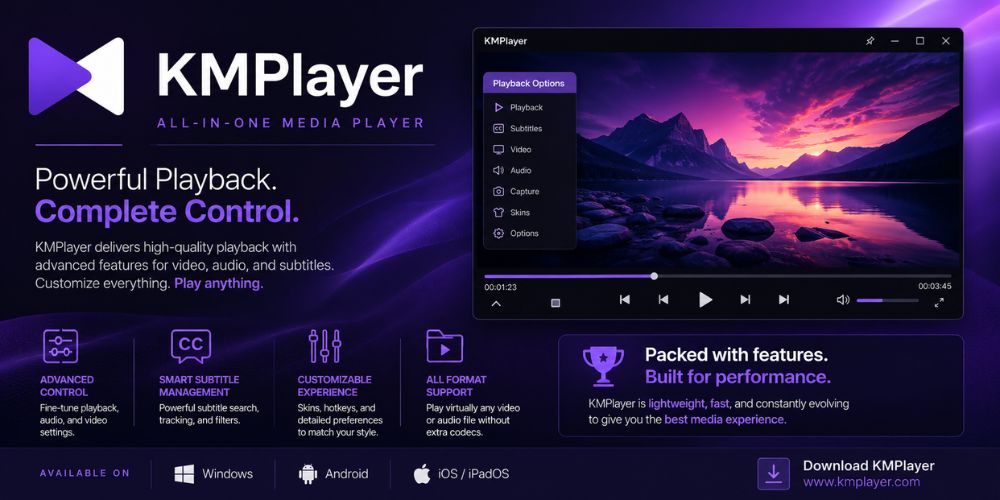
Users who watch videos frequently often prefer KMPlayer because the interface provides more control than basic players.
Why KMPlayer Stands Out
What impressed us most during testing was its highly robust subtitle engine. If you are watching vintage foreign-language FLV media, this software handles advanced subtitle tracks, custom font scaling, and manual real-time audio/subtitle synchronization more extensively than many lightweight players.
Key features include:
- FLV and multi-format playback
- Subtitle customization
- 4K and UHD playback support
- Streaming playback
- Advanced playback controls
- Screenshot capture tools
When KMPlayer Makes More Sense
Choose KMPlayer if playback quality and customization matter more than media browsing. KMPlayer fits users who regularly watch different video formats and want additional controls.
Quick Comparison of the Best FLV Viewers
| Application Name | Best Primary Use Case | Standout Strength | System Environment |
|---|---|---|---|
| WidsMob Viewer Pro | Bulk visual sorting and folder management | Mixed-media thumbnail previews and speed | Windows / macOS |
| VLC Media Player | Direct standalone video playback | Absolute codec compatibility and security | Windows / Mac / Linux / Mobile |
| KMPlayer | Advanced playback tweaks and tracking | Exceptional subtitle management and filters | Windows / Mobile |
Should You Convert FLV Files Instead?
While having a solid viewer is excellent for auditing your archives, keeping files in a deprecated format like FLV is not a viable long-term strategy. Future-proofing your media collection by converting it into modern formats is highly recommended.
You should consider converting FLV if:
- Playback compatibility becomes inconsistent
- You plan to upload videos online
- You want easier editing support
- You need broader device compatibility
- You want a more future-proof format
For archived media, however, keeping the original FLV file can still help preserve the source version.
Why MP4 Is the Most Practical FLV Replacement
MP4 remains the safest replacement format for most users because MP4 works across almost every device, browser, editing app, and media player. It also balances file size, compatibility, and video quality better than many older formats. Converting to MP4 using the H.264 video codec and AAC audio is the definitive choice for daily accessibility
Choose MP4 if you want:
- Better compatibility with Windows, Mac, iPhone, Android, and smart TVs
- Easier uploading to YouTube and social media platforms
- Wider support in video editing software
- Smaller file sizes with modern compression
- A format that works well for long-term storage
When WebM Makes More Sense
WebM works especially well for browser-based playback and web publishing. Many websites prefer WebM because it is optimized for HTML5 environments and modern streaming workflows. WebM (using VP9 or AV1 compression) provides excellent structural efficiency and smaller web-streaming file sizes.
Choose WebM if you want:
- Better support for web-based video playback
- A format designed for HTML5 browsers
- Efficient online streaming performance
- Smaller web-friendly file sizes
- Open-source codec support
How to Convert FLV Files More Efficiently
Rather than paying for online conversion websites that limit file sizes and compromise your data privacy, you can leverage free, local desktop applications:
The VLC Method: Open VLC, navigate to Media > Convert / Save, add your legacy files, and select the "Video - H.264 + MP4 (MP4)" profile to process them locally.
The HandBrake Method: For batch converting entire folders, download the open-source utility HandBrake. Drop your folder into the dashboard, select a standardized preset (like Fast 1080p30), and hit Start Encode to process dozens of files automatically using hardware acceleration.
Conclusion
The best FLV viewer depends on how you actually use FLV files. WidsMob Viewer Pro works best for browsing and organizing mixed-media folders, VLC Media Player works best for universal playback, and KMPlayer works best for users who want more playback customization.
Modern FLV workflows are no longer about Flash-based browser playback. Modern FLV workflows are about opening old files quickly, browsing media efficiently, and moving legacy videos into a more practical viewing setup.