


How To Open M4V Files on Mac and Windows: Best Players and Viewers
Last Updated on June 21, 2026 by Peter Wood
Opening an M4V file should be simple, but that is not always how the format behaves in real use. Some M4V videos open normally in common players, while others stay tied to Apple’s protected media workflow and need the right app or authorization path. Apple’s current documentation still treats .m4v as a distinct Apple video type, and Apple also defines a protected MPEG-4 video type that conforms to M4V.
The practical fix is straightforward; identify whether the file is protected or unprotected, choose a player for browsing, and convert only when device compatibility really requires it. That approach keeps the workflow faster and avoids unnecessary conversion work.


WidsMob Viewer Pro
WidsMob Media Viewer - View single image, multiple images, folder-based images, and videos in incredible fast speed and simple operation with various viewing modes. You can browse all your photos (including RAW files) and videos in one window without extra clicking and operating.
What M4V Means In 2026
M4V is Apple’s video-file type for MPEG-4 video; in short, it is an Apple media format. The key detail is not the extension itself; it is whether the file is a normal local video or a protected Apple video that belongs to a more restricted playback path.
Apple’s current Windows guidance also matters here. On Windows 10 and later, Apple now routes users to Apple Music, Apple TV, and Apple Devices for separate media tasks, while iTunes remains available for podcasts and audiobooks. That is a very different ecosystem from the old “just use iTunes for everything” workflow.
Protected Vs. Unprotected M4V Files
An unprotected M4V file usually behaves like a standard video file and can often be opened by broad players such as VLC Media Player. A protected M4V file is different because Apple documents a separate protected MPEG-4 video type that conforms to M4V, which means the file may still depend on Apple’s media ecosystem or authorization path.
In our review of current M4V playback workflows, the quickest indicator that a file was protected was usually the file source itself. Screen recordings, personal exports, and downloaded videos typically behaved like standard video files, while Apple-purchased content was far more likely to require account authorization before playback.
A Closer Comparison: Protected Vs. Unprotected M4V Files
| File Type | Typical Source | VLC Media Player | PotPlayer | Apple TV / Apple Apps | Conversion Tools |
|---|---|---|---|---|---|
| Unprotected M4V | Personal exports, downloaded videos, screen recordings, and older DRM-free purchases | Usually supported | Usually supported | Supported | Usually supported |
| Protected M4V | Apple-purchased content is tied to authorization requirements | May not play | May not play | Usually requires the appropriate Apple account authorization | Compatibility depends on the source and file restrictions |
Best Tools for Viewing M4V Files: Pick According to Your Workflow
The easiest way to handle M4V is to match the tool to the job. A browsing tool, a playback tool, and a conversion tool solve three different problems, and the article works better when those roles stay separate.
That is why the old “one player solves everything” idea falls apart fast. For protected Apple media, the current Windows path runs through Apple’s own apps, while generic players are best treated as the first test for unprotected files.
WidsMob Viewer Pro for Browsing and Managing Media
WidsMob Viewer Pro focuses on browsing local media collections and navigating files directly from folders. WidsMob combines media viewing with folder-based browsing and management tools in a single interface.

The interface allows users to move through files and folders from a single viewing environment rather than opening each item individually. The official guide also centers the library mode workflow, which reinforces the browsing-first use case.
VLC Media Player for Maximum Compatibility
VLC Media Player remains one of the most widely used cross-platform options for testing video playback compatibility. VLC is a free, open-source, cross-platform player that plays most multimedia files and streaming protocols on Mac, Windows, and Linux.

That makes it a recommended tool for the first test for a simple playback check. If the M4V file is unprotected, VLC is often enough; if the file is protected, VLC is more likely to expose the compatibility problem than solve it.
PotPlayer for Windows Power Users
PotPlayer is still a strong Windows-only choice, and the official site currently lists support for Windows 11, 10, 8.1, 8, and 7.
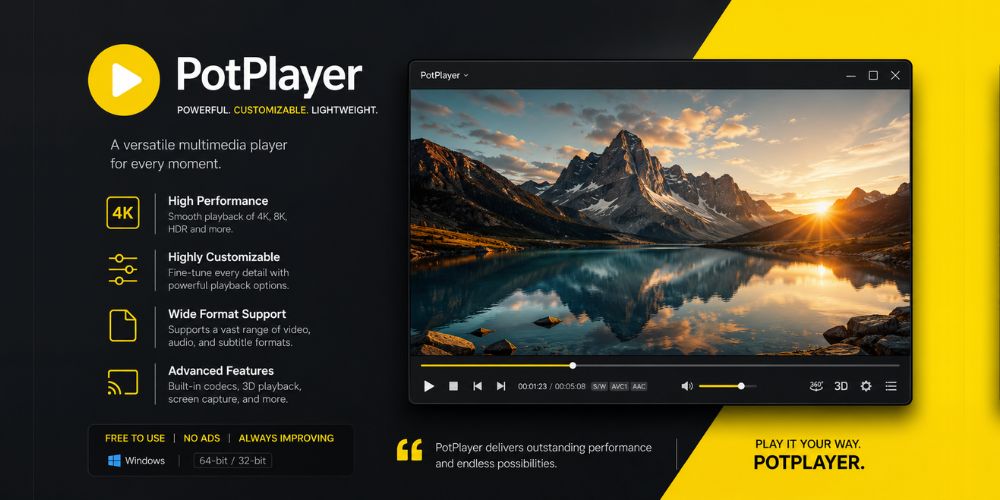
For readers who want more playback control on Windows, PotPlayer belongs in the advanced-player lane. It is less about simple browsing and more about users who want a feature-rich media player with more control than the default options.
DivX for Playback and Library Features
DivX is now positioned as a unified play-and-convert app. The current DivX Software 11 release history shows version 11.14.1 was released on March 24, 2026, and the current product page describes DivX Software as software for playing, converting, and organizing videos.
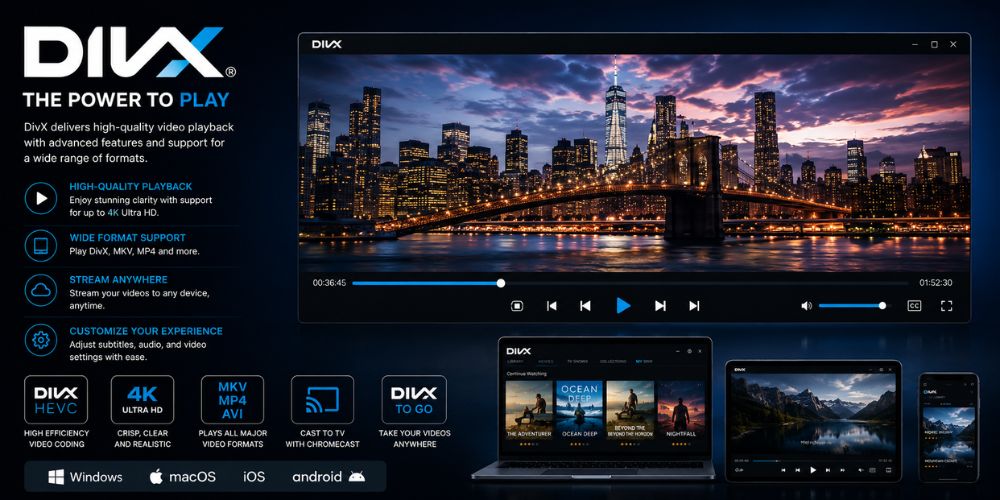
That makes DivX useful for readers who want playback plus library features in one place. Compared with VLC Media Player, DivX feels more packaged. Compared with WidsMob Viewer Pro, DivX is less of a folder browser and more of a media suite.
Best Method To Convert An M4V File
Conversion makes sense when compatibility becomes the real problem. If the goal is to move the video to more devices, more editors, or a more standard library format, converting to MP4 is usually the cleaner path than trying to force every player to cooperate.
HandBrake: A Reliable Converter Tool
HandBrake remains one of the most commonly recommended open-source video transcoders for format conversion. The official project describes HandBrake as an open-source video transcoder that converts video from nearly any format to modern, widely supported codecs, and the feature page says HandBrake can process common multimedia files and DVD or Blu-ray sources that do not contain copy protection.

That makes HandBrake a strong fit for readers who need format conversion rather than editing bells and whistles. In practical terms, HandBrake is the standard choice when the job is “make this file more compatible” rather than “build a full media workflow.”
A Recommended Alternative: WidsMob Converter
WidsMob Converter combines video conversion with editing features such as clipping, cropping, merging, and watermarking. This tool is an all-in-one tool that can convert BD/DVD/video/audio files and also edit, mirror, merge, clip, crop, and watermark media.\
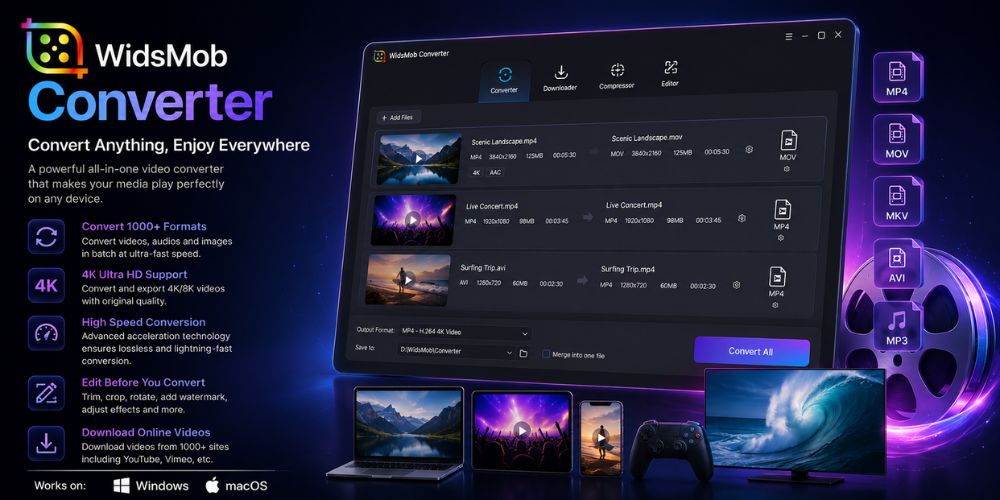
That makes WidsMob Converter the more flexible option for readers who need more than a plain transcoder. It is a better fit when the article needs to cover export control, minor edits, and conversion in one place.
What We Noticed While Reviewing M4V Workflows
While researching current M4V playback workflows, one pattern appeared repeatedly: most playback issues were not caused by the M4V format itself. Compatibility problems were more often linked to whether the file depended on Apple's protected media ecosystem.
For unprotected M4V files, applications such as VLC Media Player and PotPlayer generally offer the fastest way to verify playback support. Protected M4V files typically require Apple's authorized playback environment, making player selection less important than account authorization.
Which M4V Tool Should You Choose?
The best choice depends on the task, not the brand name. A reader who only wants to browse local folders needs a different tool from a reader who only wants playback or conversion.
| Goal | Best Fit | Why |
|---|---|---|
| Browse local media collections | WidsMob Viewer Pro | Folder-based browsing and one-window review make the workflow feel faster for local files. |
| Test broad playback compatibility | VLC Media Player | Free, open-source, and cross-platform with wide format support. |
| Use a Windows PowerPlayer | PotPlayer | Current support includes Windows 10 and Windows 11. |
| Play and convert in one app | DivX | Current DivX Software 11 combines playback, conversion, and organization. |
| Convert to a widely supported format | HandBrake | Open-source transcoder built for broad format conversion. |
| Edit and export together | WidsMob Converter | Adds clip, merge, crop, watermark, and other workflow tools. |
A Beginner-Friendly M4V Process
A clean M4V workflow is easy to explain when the steps stay practical. Start with the file type, test playback, and move to conversion only if compatibility still blocks the result.
➡️ If the file is unprotected, test VLC Media Player first.
➡️ If the goal is local browsing and media management, open the file in WidsMob Viewer Pro.
➡️ If the goal is Windows playback with more controls, use PotPlayer.
➡️ If the goal is a more complete media suite, use DivX.
➡️ If the goal is wider device support, convert with HandBrake or WidsMob Converter.
➡️ If the file is protected Apple media, follow Apple’s current app path on Windows rather than assuming a generic player will solve the problem
Conclusion
Most M4V problems are compatibility problems, not mystery problems. Once the reader knows whether the file is protected or unprotected, the rest of the workflow becomes much easier to explain and much easier to follow.
For quick browsing and local media management, WidsMob Viewer Pro is a practical recommendation. For broad playback, VLC Media Player remains the safest fallback. For format conversion, HandBrake is the cleanest standard answer, while WidsMob Converter makes sense when the reader also needs editing tools.