


How To Print Instagram Photos on Windows, Mac, iPhone, Android, or Online
Last Updated on June 23, 2026 by Rhea Cabalida
Instagram photos often look ready on screen and still miss the mark on paper. The fix is simple: save the photo first, choose the right workflow, then print.


WidsMob Viewer Pro
WidsMob Media Viewer - View single image, multiple images, folder-based images, and videos in incredible fast speed and simple operation with various viewing modes. You can browse all your photos (including RAW files) and videos in one window without extra clicking and operating.
Step 0: Save The Instagram Photo First
The cleanest print starts with the best available file. For your own photos, use Instagram’s download-your-information flow in Accounts Center so you can save a copy of your content before printing. For public photos, print only images you have permission to use and save the cleanest copy you can access from the original post or source.
For Your Own Instagram Photos
Step 1: Open Instagram and go to Accounts Center.
Step 2: Choose Information and Permissions.
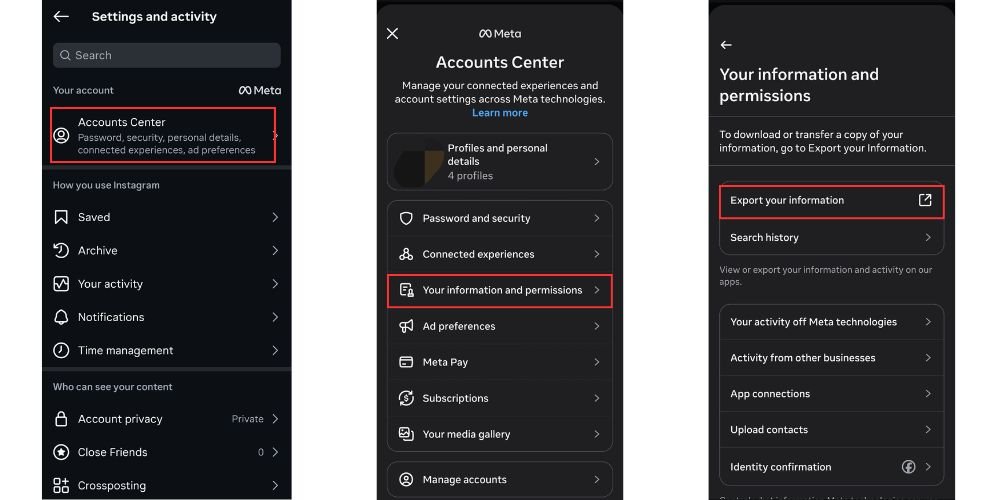
Step 3: Select Export your information.
Step 4: Request the photos and save the file to your computer or phone.
For Public Instagram Photos
- Use only photos you are allowed to print.
- Save the clearest copy available from the source.
- Avoid screenshots when possible, since screenshots usually reduce quality.
Best Way To Print Instagram Photos
The best way to print Instagram photos depends on the job. A single image may print well from a built-in photo app, while a batch of photos benefits from desktop review, crop cleanup, and resizing first. Collage projects fit an online editor, and phone-first orders fit a mobile print app.
✔️ Use a desktop photo viewer when the file needs review, crop control, or batch prep.
✔️ Use PicMonkey when the final print should look like a collage.
✔️ Use a mobile print app when convenience matters more than editing control.
✔️ Use a home printer when you want fast results and full control.
| Workflow | Best For | Main Strength | Main Limitation |
|---|---|---|---|
| Home printing | Single photos and quick jobs | Fast and private | Less flexible without prep |
| Desktop prep | Batch review and cleanup | Better control over files | Still needs a printer |
| Online collage editor | Multi-photo layouts | Strong layout control | More steps before printing |
| Mobile print app | Phone-based orders | Simple and convenient | Less precise editing |
Print Instagram Photos At Home
Home printing works best when the photo already looks right at the target size. A free native app like Windows Photos on Windows or Preview on Mac can handle simple print jobs. When the folder contains several Instagram photos, WidsMob Viewer Pro provides more control over review, resizing, and batch cleanup before the files reach the printer.
Why A Desktop Prep Step Helps
A photo can look sharp on Instagram and still print badly if the crop is tight or the file is too small. A desktop app gives more room to inspect the image before printing.
Free Native Tools To Try First
✔️ Use Windows Photos if the print job is simple and the file only needs a quick check.
✔️ Use Preview on Mac if the image needs basic viewing, markup, or printing.
✔️ Move to WidsMob Viewer Pro if several photos need batch review or cleanup first.
Use WidsMob Viewer Pro For Batch Review And Prep
WidsMob Viewer Pro works well in this part of the workflow because it supports browsing, batch processing, cropping, rotating, flipping, resizing, and format conversion. That makes the app useful when a folder contains several Instagram photos that need cleanup before printing.

How To Print Instagram Photos With WidsMob Viewer Pro
Step 1: Open WidsMob Viewer Pro on Windows or Mac and import the Instagram photos.

Step 2: Review the photos in thumbnail mode or viewing mode.
Step 3: Use Crop, Rotate, Flip, or Resize to clean up the file.
Step 4: Open Print from the File menu.
Step 5: Choose the printer, paper settings, and number of copies.
Step 6: Check the preview, then print the final version.
When Home Printing is the Best Choice
Home printing makes sense when the goal is speed, privacy, and control. The workflow also fits gift prints, scrapbook pages, and personal albums.
Why PicMonkey Fits Collage-Based Printing
PicMonkey fits this workflow because the app focuses on layout first. The collage tools help arrange multiple photos, adjust spacing, and set dimensions before the file is downloaded and printed.
How To Make A Print-Ready Collage In PicMonkey
Step 1: Open PicMonkey in a browser and sign in. Choose Collage from the top ribbon.
Step 2: Select a layout that matches the number of photos. Adjust the gridlines and dimensions.
Step 3: Add images from My Computer or double-click each panel.
Step 4: Save the result and download the finished file. Print the collage at home or through a print service.
When A Collage Layout Makes Sense
A collage layout makes sense when one Instagram photo is not enough. Travel highlights, family sets, and event recaps usually look better in a single designed page.
Use A Phone Print App For Simple Orders
A mobile print app works well when convenience matters more than editing control. Most print-ordering apps follow the same basic workflow: choose photos, select a print size, review the order, and arrange shipping. The exact screens vary by app, but the overall process stays similar.
How Mobile Printing Usually Works
Step 1: Install a photo printing app on the smartphone. Register or sign in to an account if required.
Step 2: Open the Camera Roll or photo gallery.
Step 3: Select the Instagram photos to print. Choose a print size and review the crop.
Step 4: Review the order and shipping details. Complete checkout and wait for delivery.
Popular print-ordering apps may change over time, but most services follow the same workflow. If one app is unavailable in your region, another photo printing service will usually offer similar options.
Pro Tip: Check the selected print size before checkout. A square Instagram photo can look awkward if the order defaults to a portrait size without a matching crop.
When Smartphone Printing Is The Right Fit
Mobile printing works best for small batches and simple orders. The tradeoff is less control over crop precision and file cleanup than a desktop workflow offers.
Which Workflow Should You Choose?
The best choice depends on the job. WidsMob Viewer Pro is the strongest fit when the reader needs to review several Instagram photos, clean up files, and prepare them before printing. PicMonkey is better for collage layouts, and phone print apps work best for quick orders from a smartphone.
Simple Decision Guide
✔️ Choose WidsMob Viewer Pro for batch review, crop cleanup, and desktop prep.
✔️ Choose PicMonkey for a styled collage with multiple photos.
✔️ Choose a mobile print app for fast phone-based ordering.
✔️ Choose a home printer for simple prints with full control.
If you only need one or two Instagram photos, a built-in app such as Windows Photos or Preview is usually enough. Desktop tools become more valuable when several photos need cropping, resizing, or batch preparation before printing.
Print Quality Tips Before Sending The File
Print quality depends on more than the printer. The photo should match the paper size, avoid overcropping, and stay large enough to hold detail after resizing.
Use The Right Pixel Count
For sharp prints, aim for about 300 DPI at the final print size. That means a 4x4 print needs about 1200 x 1200 pixels, a 5x5 print needs about 1500 x 1500 pixels, and an 8x8 print needs about 2400 x 2400 pixels.
Why Screen Quality Can Be Misleading
A photo that looks sharp on Instagram is not always large enough for printing. Phone screens display images at a much smaller size than paper, so a photo can appear crisp on a device and still lose detail when stretched to a larger print. Matching the pixel dimensions to the final print size is usually more important than how the image looks on screen.
Check The Crop First
Instagram crops can cut off key details near the edges. A print preview should show the full composition before the file goes to paper.
Match The File To The Paper Size
A square Instagram post works best on square paper. A vertical photo needs a layout that respects the original framing.
Avoid Blurry Prints
A photo can look sharp on a phone and still print soft if the file is too small. A desktop viewer makes it easier to inspect the image before printing.
Frequently Asked Questions
Final Takeaway
Printing Instagram photos is easier when the workflow starts with preparation. For simple jobs, a built-in photo app may be enough. For multiple files, WidsMob Viewer Pro gives more control over review and cleanup, while PicMonkey fits collage layouts, and mobile print apps fit quick phone-first orders.