


Understanding LibRaw and RAW Files: What Photographers Need to Know
Last Updated on June 25, 2026 by Peter Wood
Searching for a LibRaw viewer can be confusing. LibRaw appears in many discussions about RAW photography, yet LibRaw is not the software most photographers use to open or manage camera files.
The confusion comes from the role LibRaw plays in the imaging workflow. Understanding the difference between a RAW decoding library, a RAW viewer, and a RAW editor makes it much easier to choose the right software for the job.


WidsMob Viewer Pro
WidsMob Media Viewer - View single image, multiple images, folder-based images, and videos in incredible fast speed and simple operation with various viewing modes. You can browse all your photos (including RAW files) and videos in one window without extra clicking and operating.
What Is LibRaw?
LibRaw is an open-source RAW image decoding library that allows software applications to read camera RAW files. LibRaw is not a photo viewer, photo organizer, or RAW editor.
Software developers use LibRaw to add support for proprietary RAW formats from camera manufacturers. Formats commonly supported through LibRaw include Canon CR3, Nikon NEF, Sony ARW, Fujifilm RAF, and Adobe DNG.
A simple analogy helps explain the difference. Think of LibRaw as the engine inside a car. The engine performs the technical work, while drivers interact with the controls and dashboard rather than the engine itself.
The same idea applies to photography software. Applications built on top of RAW decoding technology provide the interface that photographers use to browse, organize, and edit images.
Do You Actually Need LibRaw?
Most users searching for a LibRaw viewer are looking for a RAW viewer or RAW editor rather than the LibRaw library itself.
A RAW viewer is designed for browsing image folders, reviewing thumbnails, checking metadata, and organizing photo collections. A RAW editor adds image-adjustment tools for exposure correction, color grading, sharpening, and export.
LibRaw becomes relevant when building software, creating custom imaging tools, or working directly with RAW image data through code.
You May Need LibRaw If:
- You are developing photography software.
- You are creating an image-processing application.
- You need RAW decoding in a custom workflow.
- You work with camera files programmatically.
You Probably Need a RAW Viewer If:
- You want to open RAW photos.
- You need thumbnail previews.
- You want to organize image folders.
- You need access to EXIF metadata.
- You want a simple way to review a photo shoot.
Best Tools for Opening RAW Files
Different RAW applications solve different problems. Some focus on image editing, some prioritize speed, and others concentrate on browsing and organization.
Selecting software based on workflow usually produces better results than selecting software based on feature count. A wedding photographer reviewing thousands of files has very different requirements from a hobbyist organizing a travel album.
FastRawViewer
FastRawViewer specializes in technical image evaluation. Photographers often use FastRawViewer to inspect RAW histograms, verify exposure, and review image quality before editing begins.
Adobe Lightroom Classic and Capture One Pro
Adobe Lightroom Classic and Capture One Pro provide complete workflows for importing, organizing, editing, and exporting photos. Both platforms combine catalog management with professional editing tools.
Photo Mechanic
Photo Mechanic is known for speed. Many sports, wildlife, and event photographers rely on Photo Mechanic to sort large photo shoots before moving selected images into an editing application.
RawTherapee and darktable
RawTherapee and darktable provide advanced RAW editing without subscription fees. Both applications appeal to photographers who want extensive image controls and are comfortable with more technical interfaces.
Alternatives Workflow Observations
Evaluating RAW software involves more than comparing feature lists. Day-to-day workflow often has a greater impact on productivity than individual editing tools.
FastRawViewer stood out as the strongest option for technical RAW inspection. Adobe Lightroom Classic and Capture One Pro offered the most complete editing environments.
Photo Mechanic remained the fastest option for reviewing and selecting large numbers of images. RawTherapee and darktable provided impressive editing flexibility for photographers who prefer open-source software.
The biggest difference between these tools was not image quality. The biggest difference was how each application approached file management, image review, and editing workflows.
Where WidsMob Viewer Pro Fits
WidsMob Viewer Pro sits between a basic image viewer and a full photo-editing platform. The software focuses on browsing, organization, and file management rather than advanced image processing.
Many photographers spend more time reviewing images than editing them. In those situations, a lightweight viewer can be easier to navigate than a full editing suite.

The software uses a folder-based workflow rather than a catalog-based system. Users can browse media directly from existing folders without creating a separate library database.
Notable features include:
- Support for RAW formats from many major camera manufacturers.
- Folder-based image browsing.
- EXIF metadata viewing.
- Batch conversion tools.
- Batch renaming tools.
- Batch resizing tools.
- Combined photo and video viewing.
Users who need advanced masking, color grading, or professional retouching tools will likely be better served by Lightroom, Capture One, RawTherapee, or darktable. Users focused primarily on viewing and organizing files may prefer a dedicated viewer.
How to Open RAW Files With WidsMob Viewer Pro
Opening RAW files with WidsMob Viewer Pro involves importing a folder, browsing thumbnails, reviewing metadata, and using optional batch-management tools.
The following workflow is based on the features described in the software.
Step 1: Import a Folder
Launch the application and add a folder that contains RAW files. Users can also select Open from the File menu.

Step 2: Browse Thumbnail Previews
The default library view displays photos and videos as thumbnails. Double-clicking a file opens a larger preview.

Step 3: Review Image Information
Select Show Info from the View menu to display EXIF metadata. Camera settings and capture information become available for review.
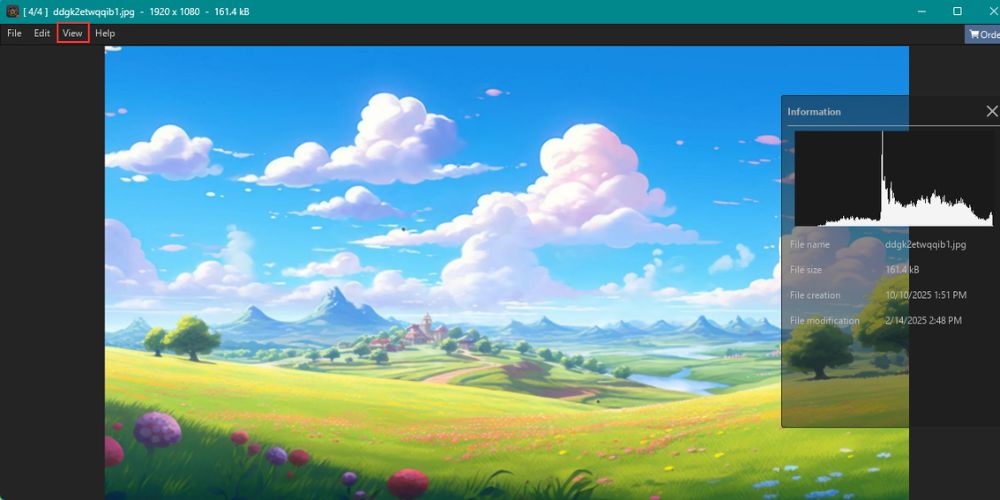
Step 4: Organize Images
The favorite function helps separate important images from the rest of the collection. Folder-based navigation keeps file management straightforward.
Step 5: Convert, Rename, or Resize Files
Open the Edit menu and select a batch-processing option.
Available tools include:
- Batch Convert
- Batch Rename
- Batch Resize
Users can configure output settings before exporting files.
Frequently Asked Questions
Conclusion
LibRaw is an important part of the RAW photography ecosystem, but LibRaw itself is rarely the tool photographers interact with directly.
Choosing the right software depends on the workflow. FastRawViewer is designed for RAW inspection, Photo Mechanic focuses on speed, Lightroom and Capture One provide complete editing environments, and RawTherapee and darktable offer advanced editing without subscription costs.
For users who primarily need to browse, organize, and manage RAW files, a dedicated viewer may provide a simpler and more efficient experience than a full editing suite.