


The Best MOV Viewers of the Year (Win/Mac, iOS/Android)
Last Updated on May 21, 2026 by Rhea Cabalida
Modern MOV files are no longer lightweight QuickTime videos. A single iPhone 16 Pro recording may contain ProRes data, HDR metadata, high-bitrate HEVC compression, or even spatial video streams. That complexity is why older media players often struggle with lag, color shifting, or failed playback.
This problem delays my creative process, as the videos taken on my iPhone just do not seem to work on my computer. And I know for a fact that I’m not the only one who struggles with this.
So, in this guide, I will walk you through things to know about modern MOV containers and the right MOV viewer you should use to optimize your workflow.

In this Article:
- Part 1: The New MOV: What’s New & What Creative Creators Should Know
- Part 2: Recommended Desktop MOV Viewers
- Part 3: Desktop MOV Viewer Tools Features Comparison
- Part 4: Top MOV Viewers for Mobile
- Part 5: Mobile MOV Viewer Tools Features Comparison
- Part 6: Recommended Home Theater MOV Viewers
- Part 7: Home Theater MOV Viewer Tools Features Comparison

WidsMob Viewer Pro
WidsMob Media Viewer - View single image, multiple images, folder-based images, and videos in incredible fast speed and simple operation with various viewing modes. You can browse all your photos (including RAW files) and videos in one window without extra clicking and operating.
The New MOV: What’s New & What Creative Creators Should Know
After a year of juggling media formats, I’ve seen the MOV container evolve from a simple QuickTime file into a complex container for high-end professional data.
In this era, the challenge we creators face isn't just about opening the file; it's also about managing massive amounts of data packed into a single container without crashing our system.
I've noticed that outdated and legacy viewers can’t seem to process the new version of MOV, and it's because of the following:
The Rise of Spatial Video
If you’re shooting on an iPhone 16 Pro, your MOV files now contain dual-stream data for VR and AR headsets. Most legacy players only see either one, which can lead to glitches or flat, lifeless playback.
ProRes is the New Standard
What used to be a "pro-only" codec is now used by everyone. These files are significantly larger than HEVC or H.264 because ProRes prioritizes editing performance and visual fidelity. If your player doesn't have the right hardware requirements, your computer will sound like a jet engine just trying to preview a 10-second clip.
💡 Need reliable HEVC players? Check them out here!
10-Bit HDR Metadata
Modern MOV files contain deep-color information. If you use a basic viewer, your vibrant sunset footage will look gray and "washed out" because the software can't read the High Dynamic Range (HDR) map inside the file.
So here’s the thing, stop thinking of MOV as a video format, considering its new features, it's way beyond that now. Think of it as a heavy shipping container. If you try to open it with a pocketknife (a basic player), you’ll never see the high-quality goods inside. You need a 'Media Engine' that can handle the heavy lifting of modern bitrates.
MOV FYI: It's a Container, Not a Video Codec
One of the biggest misconceptions about MOV files is that MOV itself is the video format. In reality, MOV is only a container developed by Apple for the QuickTime ecosystem. Think of it as a digital package that stores video, audio, subtitles, HDR metadata, and timing information in one file.
The actual video quality and playback performance depend on the codec stored inside the MOV container. Common codecs include:
- HEVC (H.265): Used by modern iPhones for smaller file sizes and HDR recording.
- Apple ProRes: Designed for professional editing workflows and high color accuracy.
- H.264 (AVC): Older but highly compatible codec for general playback and sharing.
This is why some MOV files play smoothly while others lag, show washed-out colors, or fail to open entirely. Your media player may support the MOV container itself, but not the codec, HDR metadata, or bitrate stored inside it.
⚠️ What is the Best MOV Viewer: Our Non-Biased Stress-Test
To ensure these tools meet the demands of modern creators, we run every tool mentioned below through a standardized four-tier audit on Apple Silicon (M4) and Windows 11 workstations:
- Load 400Mbps ProRes 422 HQ files to ensure zero frame drops during rapid timeline scrubbing.
- Monitor for fan spin changes and battery drain during 10-bit HEVC playback to identify efficiency leaks.
- Cross-reference HDR10+ and Dolby Vision files against calibrated monitors to detect color shifting.
- Measure millisecond delays when pushing 4K MOV files via AirPlay 2 and DLNA to guarantee stutter-free casting.
WidsMob Viewer Pro (Win/Mac)
WidsMob Viewer Pro is a hybrid media engine that manages PDFS, MOV videos, and RAW photos in a single interface.

Using WidsMob has helped with my workflow as it can process bulk media from my iPhone, camera, and other gadgets without having to switch applications. If you work with various file types too, this solves the "hassle problem" where you jump between different software for different file types. It's no surprise that WidsMob Viewer Pro dominated our stress test.
| ✨ Best Features | ❌ Disadvantages |
|---|---|
|
|
IINA (macOS)
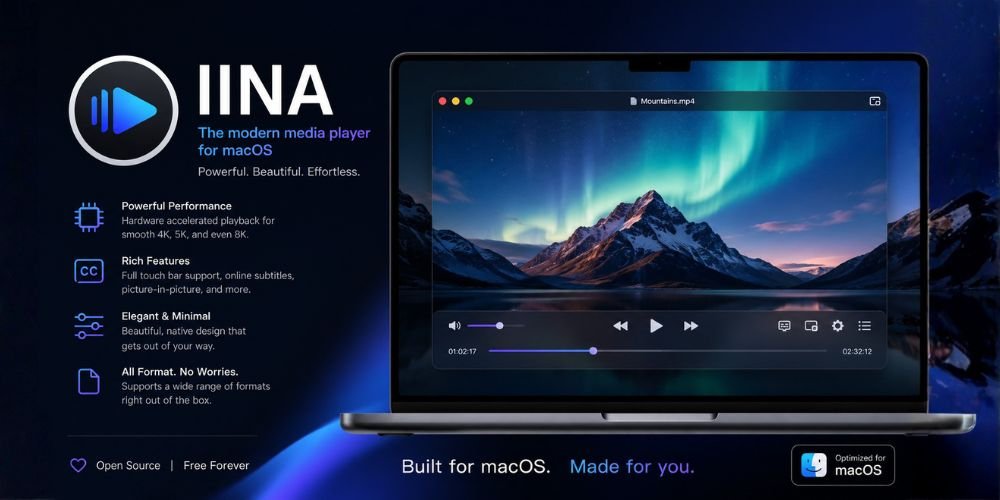
IINA is the definitive open-source MOV player for macOS users on Apple Silicon. It decodes heavy ProRes files using minimal power, extending battery life while offering a sleek, modern interface. IINA also supports native Picture-in-Picture for multitasking. This open-source player showed minimal frame drops, which is great for modern or dated Apple ecosystems.
| ✨ Best Features | ❌ Disadvantages |
|---|---|
|
|
PotPlayer (Windows)
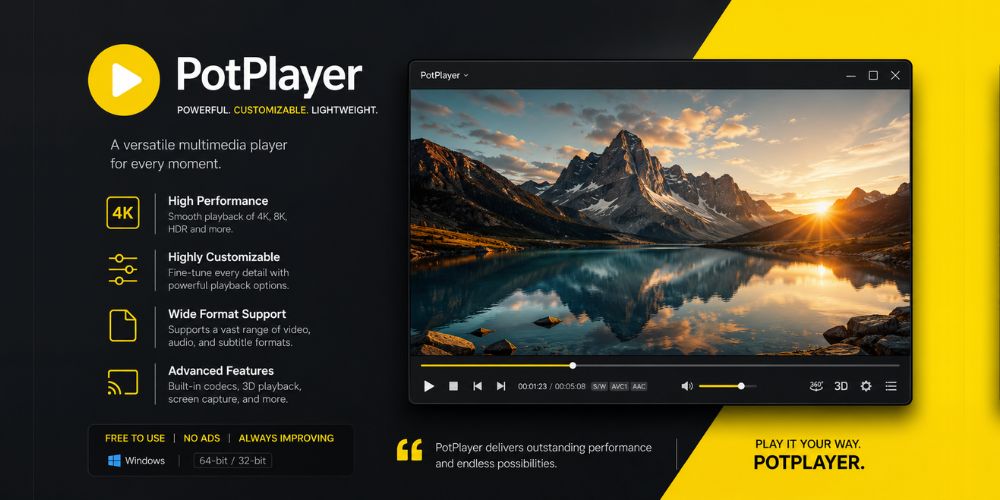
PotPlayer handles nearly every video codec natively on Windows without extra plugins; it outshone the other tool during the timeline scrubbing test on Windows 11. It features AI-powered upscaling that makes low-resolution files look crisp on 4K displays. Users get total control over audio synchronization and color accuracy.
| ✨ Best Features | ❌ Disadvantages |
|---|---|
|
|
5KPlayer (Win/Mac)
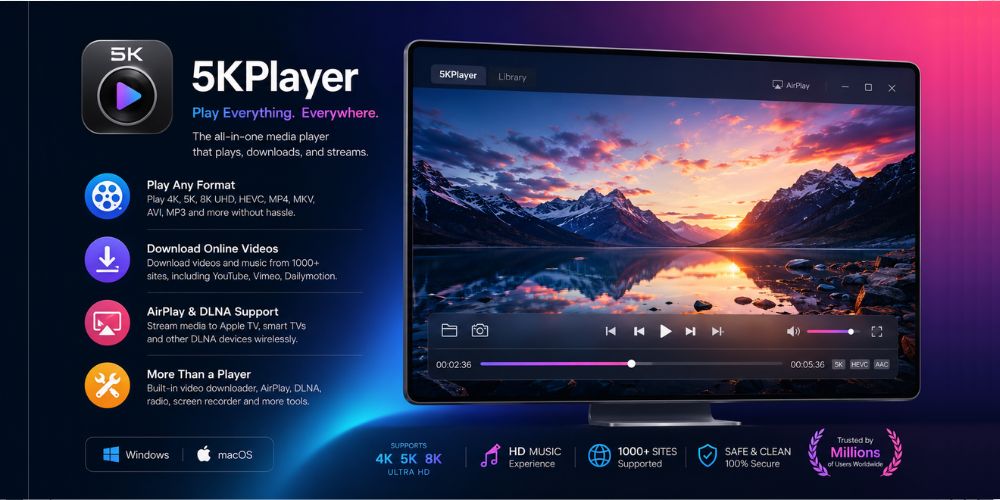
5KPlayer uses AirPlay 2 and DLNA streaming support to bridge the gap between your desktop and smart TVs, which means you can wirelessly play your MOV files from one device to another. It allows you to cast high-bitrate MOV files without losing quality. 5KPlayer is also optimized for 360-degree VR and 8K footage.
| ✨ Best Features | ❌ Disadvantages |
|---|---|
|
|
Desktop MOV Viewer Tools Features Comparison
| Tool Name | Hardware Acceleration | Side-by-Side Compare | File Management | AI Upscaling |
|---|---|---|---|---|
| WidsMob Viewer Pro | Yes (ProRes/HEVC) | Yes | Yes (Advanced) | No |
| IINA | Yes (M-Series Native) | No | Basic | No |
| PotPlayer | Yes (DXVA/CUDA) | No | Basic | Yes |
| 5KPlayer | Yes | No | Basic | No |
VLC App (Android/iOS)
VLC for Android is the gold standard for ad-free playback on mobile devices. From the desktop version to the new mobile app, this tool never disappoints. It is highly optimized to play HEVC files smoothly on mobile processors. VLC effectively parses corrupted or incomplete MOV files that stall other mobile players.

| ✨ Best Features | ❌ Disadvantages |
|---|---|
|
|
LocalCast (Android/iOS)
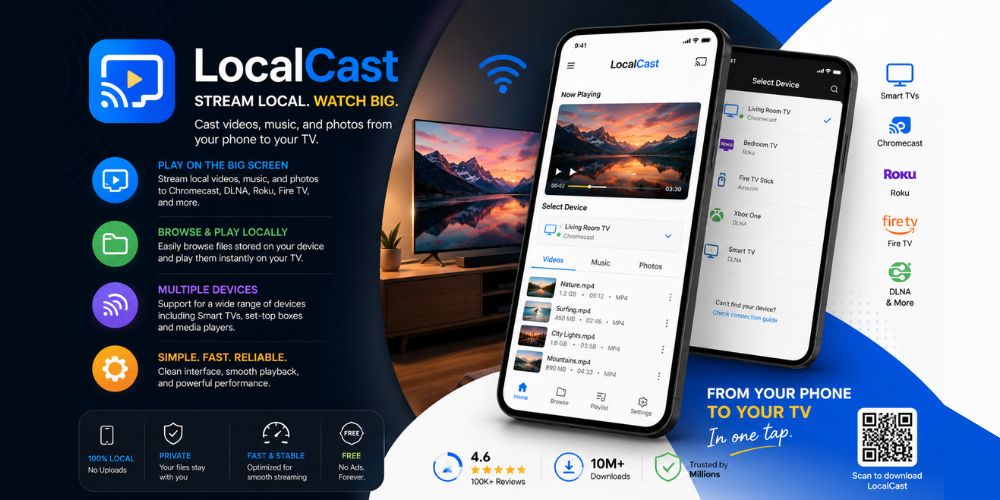
LocalCast solves the lag issues found in native mobile screen-mirroring. Based on our test, it maintains original video frame rates when pushing local phone media to a television by using direct file transfer protocols. Which is why it can stream files directly to Chromecast, Roku, and Apple TV without lagging. This ensures your video renders natively on the target device.
| ✨ Best Features | ❌ Disadvantages |
|---|---|
|
|
Mobile MOV Viewer Tools Features Comparison
| Tool Name | Ad-Free | 4K/8K Support | Native Casting | NAS/Cloud Access |
|---|---|---|---|---|
| VLC for Android | Yes | Yes | Basic | Yes |
| LocalCast | No (Free version) | Yes | Yes (Advanced) | Yes |
Infuse 8 (iOS/tvOS)
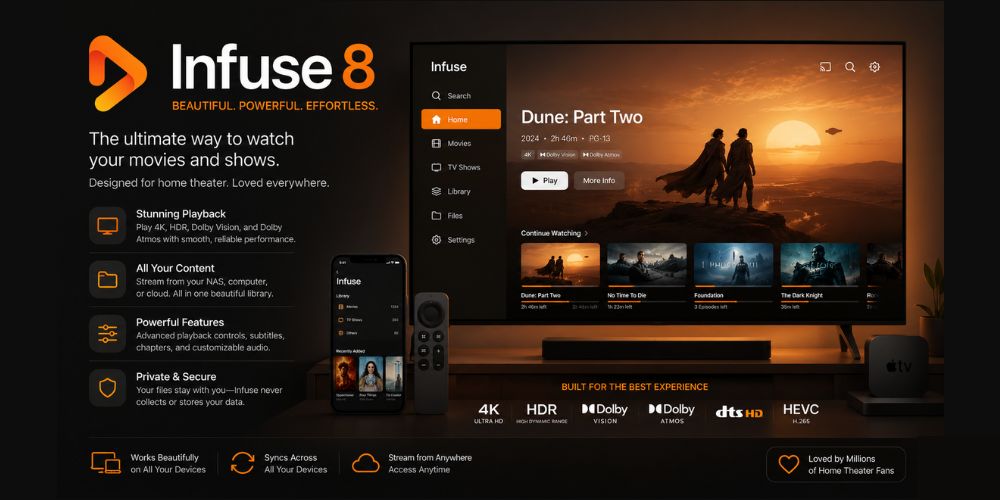
Infuse 8 achieved a perfect score in our color accuracy check by natively mapping Dolby Vision Profile 8.1 metadata. It completely prevents the washed-out gray tones common in basic mobile viewers, preserving exact cinematic color grades on high-end Apple displays.
| ✨ Best Features | ❌ Disadvantages |
|---|---|
|
|
MX Player: The Hybrid Hub
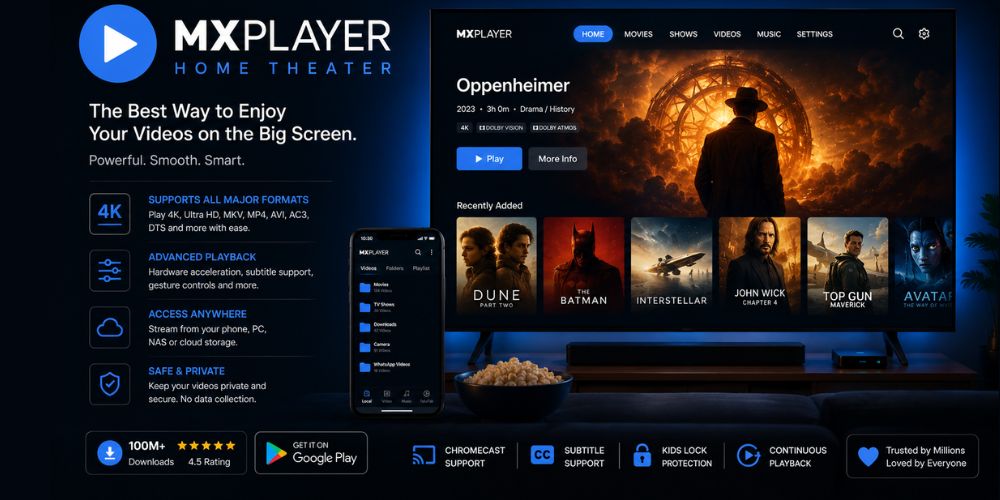
MX Player offers a one-stop shop for local MOV files and global network streams. The interface uses simple gestures to control brightness and volume while you watch, which earned it high marks during the interface test. This hybrid app suits casual viewers who want to watch local clips alongside global network streams in one interface.
| ✨ Best Features | ❌ Disadvantages |
|---|---|
|
|
Final Verdict: The Veteran’s Recommendation
The ideal MOV viewer depends entirely on your workflow; you may be previewing raw footage or checking finished content. Choosing a tool that suits your needs will eliminate the hassle and make your process more efficient.
👉 For Creative Professionals: If you handle massive shoots, make WidsMob Viewer Pro your first choice.
👉 For Power Users & Casual Viewers: Stick to native specialists like IINA on Mac or PotPlayer on Windows for everyday desktop playback. If you are building a server-based home theater ecosystem, invest in the automated pipeline of Infuse 8.
Stop treating your complex MOV containers like legacy video files. Upgrade to a dedicated MOV viewer today to unlock the full bit depth and speed of your camera gear.