


How to Make a Slideshow on Mac: Best Free & Easy Methods
Last Updated on June 4, 2026 by Rhea Cabalida
Making a slideshow on Mac is easier when the tool matches the goal. Photos work best for quick slideshows, iMovie is best for video-style projects, WidsMob Viewer Pro helps organize large photo libraries, and Clideo works well for browser-based editing.
Most Mac users do not need advanced editing software. Most people just want a clean slideshow with music, smooth playback, and a setup process that does not take an hour.

In this Article:
Quick Answer: What Is the Best Slideshow Maker for Mac?
The best slideshow maker for Mac depends on what you want to create. Photos is the easiest built-in choice for photo slideshows, iMovie is better for cinematic video slideshows, WidsMob Viewer Pro helps organize and preview large media libraries, and Clideo works well for browser-based editing.
| Tool | Best For | Main Advantage |
|---|---|---|
| Photos | Simple photo slideshows | Built into macOS |
| iMovie | Video-style slideshows | Better editing control |
| WidsMob Viewer Pro | Sorting large libraries | Fast browsing and preview |
| Preview | PDF slideshows | Quick presentation playback |
| Clideo | Online slideshow creation | No installation needed |
Method 1: How to Make a Slideshow on Mac with Photos
Photos is the fastest native way to create a slideshow on Mac. Apple lets users build slideshow projects with photos, videos, music, themes, and slide timing directly inside the Photos app.

Steps to Create a Slideshow in Photos
Step 1: Open Photos on Mac.
Step 2: Select the photos and videos you want to use.
Step 3: Choose File > Create > Slideshow > Photos.
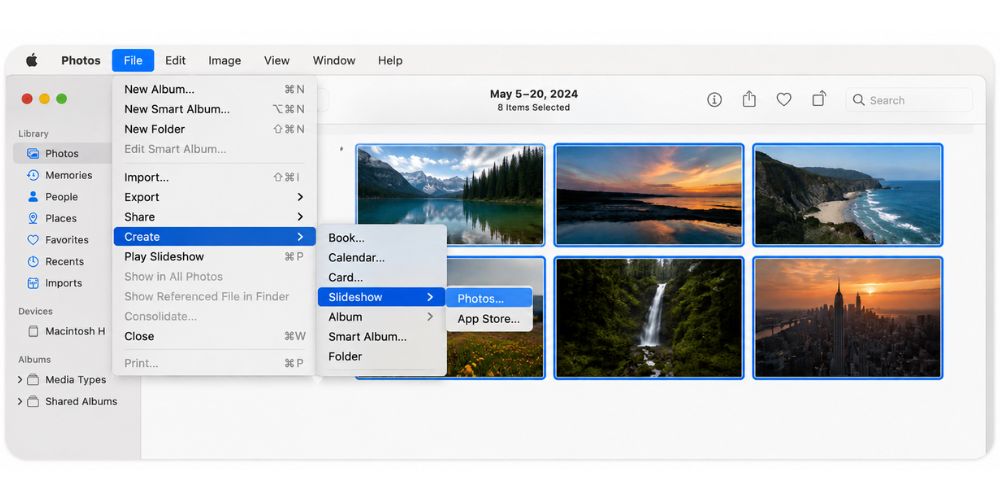
Step 4: Click New Slideshow and type a slideshow name.
Step 5: Drag thumbnails to rearrange the order. Add music, themes, and timing settings.
Step 6: Play or Export the slideshow.
💡 Pro-Tip: For faster setup, choose a built-in slideshow theme in Photos before adjusting timing and music manually.
Why Photos works well:
Photos feels simple because the app is already built into macOS. The workflow is clean, fast, and beginner-friendly.
Method 2: How to Create a Video Slideshow in iMovie
iMovie is better when the slideshow needs transitions, pacing control, sound effects, or a more cinematic feel. Apple positions iMovie as a movie editor, which gives users more flexibility than Photos on current platforms such as macOS Sonoma and Sequoia.
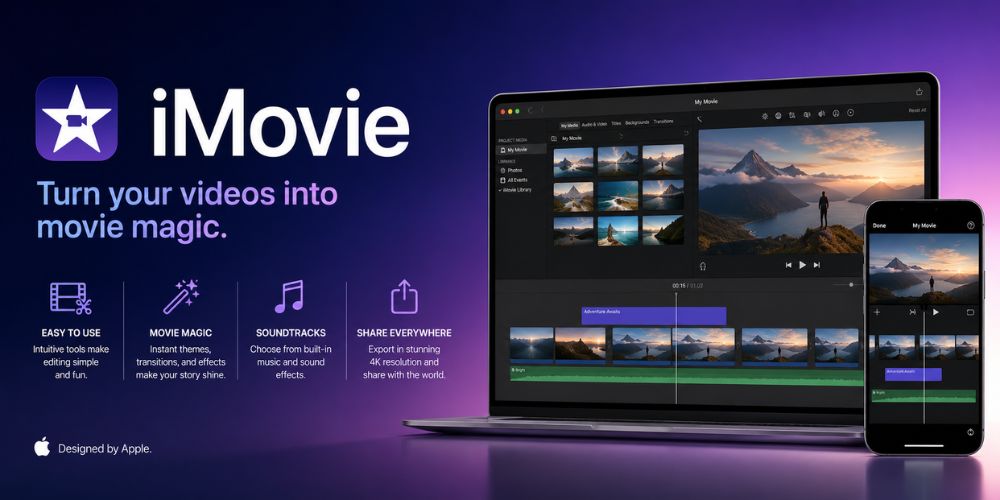
Steps to make a Slideshow in iMovie
Step 1: Open iMovie on Mac. Start a new Movie project.
Step 2: Import photos and video clips. Drag the media into the timeline.
Step 3: Add transitions and background music.
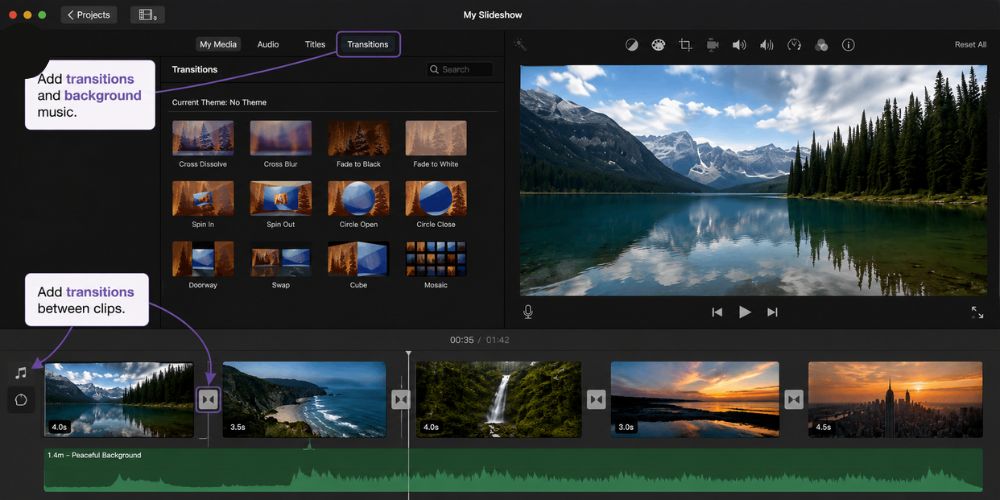
Step 4: Adjust timing and playback speed.
Step 5: Export the finished slideshow video.
💡 Pro-Tip: Many iMovie projects use a widescreen format, so vertical iPhone photos may display black bars by default.
Why iMovie works well:
iMovie gives more editing control than Photos. The tradeoff is a slightly longer setup process.
Method 3: Use WidsMob Viewer Pro to Sort and Preview Photos Faster
WidsMob Viewer Pro works best when the biggest challenge is managing a large photo collection before building the slideshow. The software focuses on fast folder browsing, slideshow playback, Favorites management, and quick media previewing on modern Mac systems.

Why WidsMob Viewer Pro stands out
- Fast browsing across folders and media libraries
- Support for multiple image and video formats
- Favorites mode for quick photo selection
- Built-in slideshow playback
- Lightweight workflow without complex importing
💡 Pro-Tip: Use the Favorites feature to flag the best images before importing files into heavier editing software. This saves hours of importing and deleting bad takes inside heavier editing software later when organizing a massive album.
WidsMob Viewer Pro fits users who already have hundreds of photos and want a faster way to narrow down the best shots before moving into Photos or iMovie.
Method 4: How to Play a PDF Slideshow in Preview
Preview supports PDF slideshow playback on Mac. Apple documents Preview as a PDF and image viewer, not as a full slideshow creator for photo libraries. This native tool operates identically across modern macOS iterations from Sonoma to Sequoia.
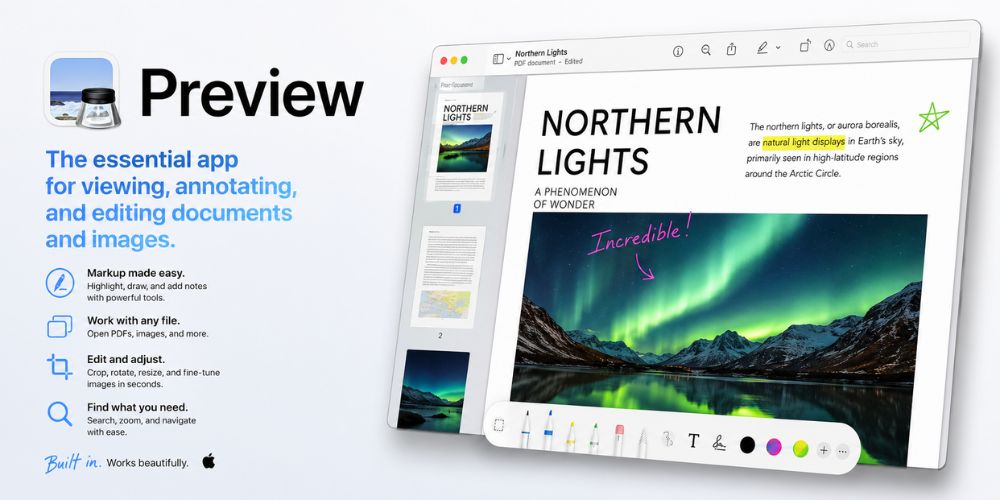
Steps to use the Preview Slideshow Mode
Step 1: Open a PDF file in Preview.
Step 2: Choose View > Slideshow.
Step 3: Use the controls to move between pages.
💡 Pro-Tip: This method only plays existing multi-page PDFs or a selection of separate images as a static full-screen loop. It does not support background music or animated transitions, so reserve it strictly for quick professional presentation reviews.
When Preview makes sense:
Preview works well for presentations stored as PDF files. For photo slideshows, Photos or iMovie are better choices.
Method 5: How to Make a Slideshow Online with Clideo
Clideo is a browser-based slideshow maker that works without installing software. The platform supports uploading photos and videos, rearranging files, adding music, trimming audio, and exporting slideshow videos online from any modern Safari or Chrome browser on Mac.

Steps to Create a Slideshow in Clideo
Step 1: Open Clideo Slideshow Maker in the browser.
Step 2: Upload photos or videos from the Mac.
Step 3: Rearrange the media order. Add music if needed.
Step 4: Adjust timing and trim audio.
Step 5: Export the slideshow video.
💡 Pro-Tip: Free accounts add a small watermark to the final export. If you are preparing a formal presentation or client-facing project, stick to Photos or iMovie to keep the video completely clean and professional without additional subscription costs.
Why Clideo works well:
Clideo is convenient for one-time projects or shared computers where installing apps is not ideal.
Finder and Quick Look: What They Can Actually Do
Finder and Quick Look help users preview files quickly on Mac. Apple describes Quick Look as a fast preview tool for images, videos, PDFs, and other file types inside Finder windows across macOS Sonoma and macOS Sequoia.
- Preview photos without opening another app
- Check videos quickly
- Rotate or mark up files
- Review media before importing into slideshow apps
Finder is useful for organizing files, but Finder itself is not a slideshow creator.
Which Mac Slideshow Tool Should You Choose?
Choose Photos for the simplest native slideshow workflow. Choose iMovie for stronger editing and video storytelling. Choose WidsMob Viewer Pro if the media library feels cluttered and difficult to sort. Choose Clideo for browser-based convenience, and use Preview only for PDF slideshows.
Final Thoughts
The best slideshow maker for Mac depends on the project, not the hype. For most users running modern macOS Sonoma or Sequoia, Photos handles quick slideshows easily. iMovie adds creative control, while WidsMob Viewer Pro speeds up the photo-selection stage when the library gets large.