


How to Use Photos for Mac - Photos App Introduction and Review
Last Updated on June 16, 2026 by Rhea Cabalida
Most Mac users do not struggle with a lack of photo apps. The real challenge is managing thousands of images across an iPhone, Mac, camera, and cloud storage without creating duplicates or wasting time searching for files.
Photos for Mac helps solve that problem by serving as a central photo library that keeps images organized, searchable, and synchronized through iCloud Photos. It combines importing, organization, editing, search, and sharing tools into a single workflow.
For long-term photo management, Photos is the default choice for most Mac users. However, users who frequently review folders of RAW images, videos, or mixed media may benefit from using a dedicated browser such as WidsMob Viewer Pro alongside Photos rather than replacing it.

In this Article:
- What Photos for Mac Actually Does
- How to Import Images into Photos for Mac
- How to Organize Images in Photos for Mac
- How to Edit and Share Pictures in Photos for Mac
- Extra Tools inside Photos for Mac That Are Easy to Miss
- When Preview Is Enough
- Why WidsMob Viewer Pro Is a Useful Companion
- Photos for Mac vs Preview vs WidsMob Viewer Pro
- A Workflow Mistake Many Mac Users Make

WidsMob Viewer Pro
WidsMob Media Viewer - View single image, multiple images, folder-based images, and videos in incredible fast speed and simple operation with various viewing modes. You can browse all your photos (including RAW files) and videos in one window without extra clicking and operating.
What Photos for Mac Actually Does
Photos for Mac is Apple’s built-in app for browsing, organizing, editing, and sharing your photo collection. It can bring photos and videos to your Mac from iCloud Photos or from a camera or phone, organize images into albums and folders, make basic edits like crop and straighten, and help you search the library by title, caption, keyword, date, and even text inside photos.
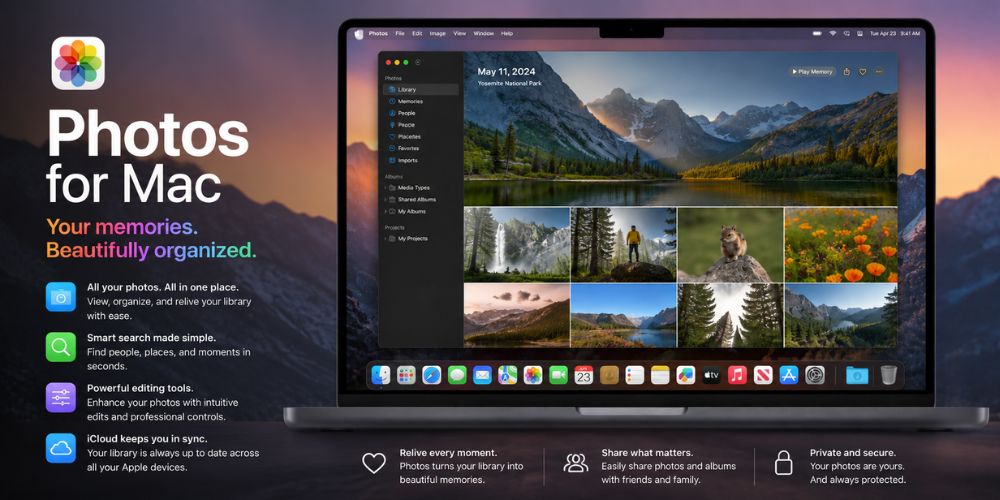
Here is the simple split:
✔️ Bring photos and videos to the Mac from iCloud Photos or import them from a camera or phone.
✔️ Organize images into albums and folders.
✔️ Edit common items such as crop, straighten, and color adjustments.
✔️ Search and filter by media type, keywords, people, recent edits, receipts, and more.
✔️ Share photos through shared albums and other Apple sharing flows.
How to Import Images into Photos for Mac
Importing photos correctly matters because every organizational feature in Photos works better when the library stays clean. Albums, search results, people recognition, and iCloud synchronization all benefit from a consistent workflow. Photos stores imported items in the photo library, and you can move the library to another storage device if space becomes tight.
Import from an iPhone or iPad
If iCloud Photos is on, photos sync automatically to the Mac through Photos. If iCloud Photos is off, connect the iPhone or iPad to the Mac with a USB cable, allow the connection if prompted, open Photos, unlock the device if needed, and import the items you want.
Import from a Camera
For camera imports, connect the camera or device, turn it on, make sure it is in the correct import mode, then open Photos and choose the device in the sidebar. From there, you can review and import the images you want.
Import from Another Photos Library
If the Mac already has another Photos library, quit Photos, hold the Option key while reopening the app, choose the library, and then use File > Import to bring items in. That is the cleanest path when you are moving content between local libraries instead of rebuilding everything from scratch.
If you still have an Old iPhoto Library
According to Apple, iPhoto cannot be used on macOS after Mojave 10.14, and Apple directs users to migrate the library to Photos. Apple also points users toward Adobe Lightroom Classic in that migration guidance.
How to Organize Images in Photos for Mac
Organization works best in Photos when the library stays clean, and the album structure stays simple. Apple lets users create albums, place the same photo in more than one album, and group albums inside folders.
Use a standard album when you know exactly which photos belong together. Vacation highlights, client selections, wedding moments, and family events are good examples because you control every image in the album instead of relying on rules.
Use a Smart Album when you want Photos to do the sorting for you. You can create one with a single condition or combine multiple conditions, which makes Smart Albums useful for recent imports, edited photos, screenshots, or any other repeatable rule.
Once a library contains dozens of albums, folders become the practical fix. Open Albums, create a folder, and drag albums into it so event albums, work albums, and personal albums stay separated without cluttering the sidebar.
How to Edit and Share Pictures in Photos for Mac
Photos for Mac covers the common edits most Mac users need, including crop, straighten, and quick color adjustments, so the app works well for everyday cleanup without opening a heavier editor.
It is not trying to replace a pro RAW workflow, and that is part of why the interface stays approachable. You can also add titles and captions, which helps when a library gets large, and search matters more than scrolling.
For sharing, Photos supports shared albums, and you can also send photos and videos through Messages on Mac. For a family album or project album, shared albums keep the content together in one place.
Extra Tools inside Photos for Mac That Are Easy to Miss
Photos includes smart search and recognition features such as Live Text for text inside photos, Visual Look Up for objects such as landmarks, plants, flowers, and pets, and Utilities collections like Duplicates, Receipts, Recently Edited, and Recovered items. These features cut down on manual sorting because you can find a receipt, a recent screenshot, or a recently edited image faster than scrolling through years of thumbnails.
When Preview Is Enough
Preview is the lightweight image and PDF app included with macOS. It can view and manage PDFs and images, add annotations and signatures, combine or split PDFs, show file information such as size and resolution, and use Live Text to copy text inside a photo. That makes it a strong choice for quick checks and simple markup.

Why WidsMob Viewer Pro Is a Useful Companion
WidsMob Viewer Pro serves a different purpose than Photos.
Instead of managing a library, it focuses on fast folder-based browsing and supports a wide range of image, RAW, and video formats.

It is particularly useful when you need to:
✔️ Review large folders quickly.
✔️ Browse RAW files before importing.
✔️ View photos and videos together.
✔️ Compare images without building a library first.
For photographers and users working with multiple media formats, this workflow can be faster than importing everything immediately into Photos.
Photos for Mac vs Preview vs WidsMob Viewer Pro
| Tool | Best for | Main strength | Main limitation |
|---|---|---|---|
| Photos for Mac | Long-term photo management | Library organization, iCloud Photos sync, albums, editing, and sharing | Can feel slower for quick folder review |
| Preview | Fast file checks | Simple viewing, annotations, signatures, and PDF/image tools | Not built for a full photo library workflow |
| WidsMob Viewer Pro | Mixed media browsing | Fast folder browsing and support for RAW, HEIC, and video | Not a full Apple-style library manager |
A Workflow Mistake Many Mac Users Make
A common mistake is treating Photos for Mac like a file browser instead of a photo library. New users often create duplicate folders, export unnecessary copies, or manage photos in Finder while also managing them in Photos.
Over time, that approach creates confusion because the same image may exist in multiple locations. A cleaner workflow is to let Photos manage the library while using Finder only for temporary transfers and backups.
Users who frequently review large folders of RAW images may prefer a dedicated browser such as WidsMob Viewer Pro during the selection stage, then move the final images into Photos for long-term organization.
Troubleshooting That Saves Time
If imports look missing, make sure the device is unlocked, trusted, and properly connected before importing again. If iCloud Photos is full, you can still import by connecting the device directly to the Mac. If Photos starts acting strangely, the Repair Library option can often resolve library-related issues, and the Utilities section can help you find Duplicates or Recovered items.
Final Recommendation
Use Photos for Mac when you want to keep your photo collection organized, synced, and easy to search. Photos handles import, albums, editing, metadata, Live Text, Visual Look Up, and sharing well enough for most everyday users.
Use Preview when the job is quick viewing or markup. Use WidsMob Viewer Pro when the job is fast browsing, mixed formats, and folder-first triage. That combination gives Mac users a cleaner workflow than forcing every task into one app.