


How to Record a Phone Call on Android & iPhone – A Complete Guide
Last Updated on November 28, 2025 by Rhea Cabalida
Recording phone calls can help us out in various situations, whether you're conducting an interview, documenting a business conversation, or keeping a record for personal reasons. However, recording a phone call can be quite tricky as it has legal and technical restrictions.
But worry not, after intensive research, we have determined the safest and easiest ways to record a phone call on both Android and iPhone. If you want to know more about this, read on!

In this Article:
FYI: Is it Legal to Record a Phone Call?
First things first, we must clarify the legalities when it comes to recording phone conversations. Is it legal? Well, it depends; it can differ not just by country, but also by U.S. state, and failing to follow them can result in legal consequences. Here are the current laws regarding this topic:
One-Party Consent
Under this law, only one participant (you) has to agree and know that the phone call is being recorded. This means you are legally allowed to record phone conversations without notifying the other person, as long as you are part of the call.
This law is applied in the US states and countries such as:
- Texas
- New York
- Ohio
- North Carolina
- Georgia
- Philippines
- UK (with limitations)
Two-Party/All-Party Consent
Within this law, all the participants of the phone call should be notified and have agreed to record the phone call. Doing so without permissions can result in criminal penalties and lawsuits.
Here are some of the countries and states where this law currently applies:
- California
- Florida
- Illinois
- Michigan
- Washington
- Some parts of Canada
- Some parts of Australia
- Germany
To be safe, always inform the other party before recording a call, and make sure to have their permission. This will help you avoid legal issues and show respect to the other person.
Is it Possible to Record Phone Conversations?
Of course! But on some devices, you might encounter some restrictions, and you’ll need to use alternative methods and tools. Don’t worry, in the next part, we will discuss all the possible ways to record phone calls on iPhone and Android. Check them out!
Record Phone Conversation on iPhone via Voice Memos
The most common ways of recording calls on an iPhone are by using the Voice Memos app. This will require two phones, one to take the call and the other to record it.
Once the call has started, put it on speaker, pull up the Voice Memos app on the other device, then start recording.

And that’s it, after that, you can save and send the recorded call to your main phone.
Use Third-Party Apps to Record a Phone Call on iPhone
Even though there’s no dedicated call conversation recorder on iPhone there’s a few good apps that can do the job. These apps are available on the App Store and offer various extra features. Here are some that we recommend:
Call Recorder iCall
This tool can record both incoming and outgoing calls in high quality, plus it offers an easy playback within the app. It has a subscription for unlimited access, but you can test it out with the free trial version.
RecMyCalls Call Recorder
It has cloud integration, which means you can upload/save the recording directly to Dropbox, Google Drive, etc. It also records outgoing and incoming calls, plus offers transcription tools.
Phone Recording App
Offers unlimited recording depending on the plan you availed. It also offers easy sharing and exporting options, and a clean and user-friendly interface.
💡 For a detailed guide on how to record phone calls on iPhone, check out this guide: Can You Record a Phone Call on iPhone? Here’s the Truth & How to Do It Safely
Record a Phone Call on Android via Built-In Call Recording
To easily record a phone conversation on Android, simply open the Phone app, start a call, and press the Recording option. The recorded clip will then be saved in the Recording/Call Recording folder.
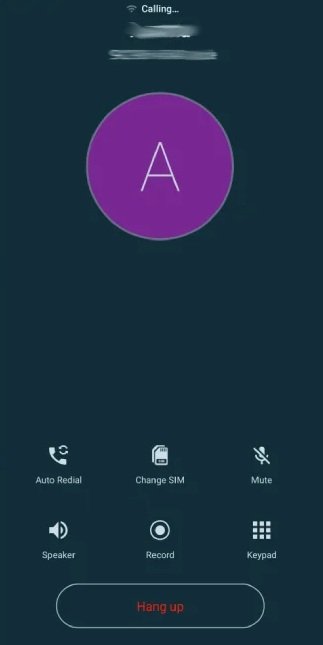
This feature is not available on some models and brands; you have to make a test call first to check if it's accessible on your phone.
Use Third-Party Apps to Record a Phone Call on Android
There are also some good call conversation recorders on Android. Here are some that you can check out:
Call Recorder Automatic
This call conversation recorder can record both incoming and outgoing calls automatically in high quality. Plus, it supports caller ID to identify unfamiliar callers. Apart from that, you can also save your recording in multiple audio formats. You can also save the recordings locally or to the cloud.
Call Recorder - Cube ACR
It's one of the most popular call recording tools. It supports regular phone calls and VoIP calls, plus lets users set which calls to record (choosing a contact, all calls, etc.). Also, it has a “shake to record” option to easily activate and start the recording.
Automatic Call Recorder Pro
It works on different types of calls and has a cloud sync option to securely save your recordings. You can access advanced features if you avail the premium version.
Bonus Tip: Record Video Calls on Your Computer via WidsMob Capture
Apart from phone calls, you might also want to record calls on your computer. This can be helpful, especially during online meetings, work interviews, and other important online calls. In situations like this, we only have one tool that we highly recommend, and that is none other than WidsMob Capture.

With WidsMob, you can:
- Record both screen and audio from calls
- Capture webcam, system sound, and microphone
- Save in multiple formats (MP4, MOV, etc.)
- Edit recorded clips
- Schedule automatic recordings
This tool is perfect for all types of recording needs. Try it out now!
Final Thoughts
Recording phone calls is very helpful; however, we must always keep in mind the privacy and legal guidelines. Whenever you make a call, be sure to inform the other party to avoid any issues.