


How to Screen Record Netflix Without Black Screen
Last Updated on October 31, 2025 by Rhea Cabalida
Screen recording Netflix shows and movies is much cheaper than paying for monthly subscriptions. However, after recording, some users don’t see anything aside from a black screen. Well, this is due to Netflix’s built-in protection mechanism to prevent copying copyrighted content.
There are a lot of users asking:
How to screen record Netflix without black screen? Is it even possible?
And the answer is yes! With the right tool, recording without the black screen on Netflix will be easy-peasy. If you want to know more, continue reading this page, as we will unveil the best tools to remove the Netflix black screen.

In this Article:
Digital Rights Management (DRM) Protection
Just like most digital media, Netflix uses DRM to protect its content from unauthorized duplication and distribution. When DRM detects a recording program, then the player hides the visual output, leaving you with a black screen.
This protection is applied on multiple devices, including Windows, Mac, Android, iPhone, and browsers such as Chrome, Edge, or Firefox.
Browser Security Settings
To prevent content pirating on browsers, Chrome, Edge, and other browsers use content protection protocols that restrict capture of DRM-protected videos.
This option can be partially disabled, but cannot be removed. On your browser, go to Settings > System > Use hardware acceleration when available > turn it off. This may prevent the black screen from appearing, but this will depend on your browser, region, etc.
In short, the Netflix black screen is made to prevent content piracy. But how about those users who want to keep copies of their favorite shows for archiving and personal use? The legalities of these issues are discussed in the next part.
Is it Legal to Screen Record Netflix?
Based on Netflix’s Terms of Use, recording or capturing content from the platform is strictly prohibited; doing so is a copyright violation.
However, there is a workaround in this situation, recording on Netflix can somehow be allowed if it's for:
✅ Education or review purpose
✅ Commentary or tutorials
✅ Personal use
But these situations still fall in a legal gray area that is not officially supported by the platform itself.
Method 1: Use WidsMob Screen Recorder to Record Netflix without Black Screen
The best way to record shows without the Netflix black screen is to use professional tools like WidsMob Screen Recorder.
This amazing program is designed to capture high-quality screen recordings on various devices and platforms. With WidsMob, you can record a full Netflix episode or movie without having to worry about the black screen.

Apart from that, this tool includes editing tools and gives full access to the output settings you can set the preferences yourself. WidsMob has a user-friendly interface that is perfect for both beginners and professionals. Try it out.
How to Record Netflix via WidsMob Screen Recorder
Here is the full guide on how to use WidsMob to record Netflix.
Step 1:
Click the button below to download and install the program on your computer.
Step 2:
Open Netflix and load the show you wish to record.
Step 3:
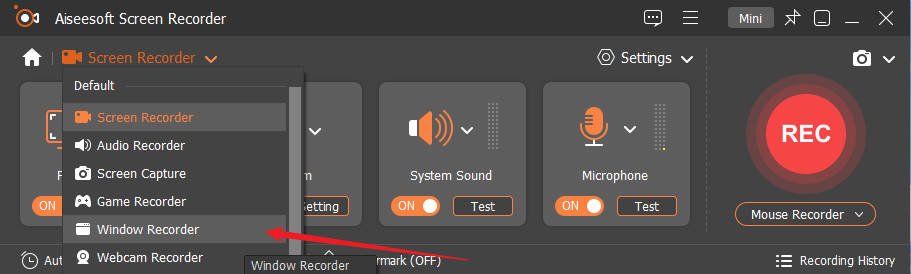
Next, launch Aiseesoft and choose the Windows Recorder, then choose the Netflix Window.
Step 4:
Turn on the System Sound option, then go to settings, you set the output preference.

Step 5:
When everything is set, press Record. When it's done, press Stop, and the recorded clip will be saved on the default path.
Method 2: Record Netflix without Black Screen via an External Capture Device
Aside from software-based recorders, you can also use an external recording device to record shows without the Netflix black screen.
This method will skip DRM-related issues as it records the actual HDMI output signal, essentially capturing what’s shown on your screen without interfering with Netflix’s digital protection layer.
Here are the things you’ll need:
✅ HDMI capture cards. Check them out here:
⬇️ Amazon
⬇️ eBay
✅ Two devices. One for Netflix playback (like your laptop or console) and another for recording.
✅ Recording software. You can use OBS, Aiseesoft, etc.
✅ HDMI cables to connect everything.
Once you have everything, follow the steps below:
Step 1:
Use one device to play the Netflix content, then plug the HDMI into the port of the computer.
Step 2:
Then, connect the output of the capture card to your recording device via USB cord or HDMI pass-through.
Step 3:
Launch the screen recording program on the recording device, then select the capture card as your video input source.
Step 4:
On the playback computer, hit play on Netflix, then begin the recording on the capture device. It will record everything shown on the screen in real-time.
Step 5:
Stop the recording when the show is done.
💡 For the full guide and to know more about Netflix screen recording, read this: How to Record Netflix Movies on Windows, Mac, Android, and iPhone You Should Know
Legal & Safe Alternatives to Screen Recording Netflix
Recording Netflix shows can be great, but as we mentioned above, it's still in a legally gray area. To be safe, we recommend using alternative ways to save and watch Netflix shows.
Use the Default Download Option
Netflix offers an option to download any movie or show offline. You can watch the show without an internet connection. This feature is available on all platforms and devices.
Watch through Authorized Devices
Smart TVs, tablets, and streaming boxes support Netflix’s offline mode for eligible titles.
These methods are safe, convenient, and 100% legal. Plus, you don’t need to install tools, and you’ll be able to watch any show or movie that you want.