


How to Screen Record a Live Stream (The Full Guide)
Last Updated on October 27, 2025 by Rhea Cabalida
Live streaming has leveled up the entertainment scene ever since it became popular. From gaming sessions on Twitch, podcasts on YouTube, to broadcasts of live events on Facebook, live streaming has been a great way to reach more audiences and for people to enjoy online content easily.
There are times when people record live streams so they can rewatch moments offline or save them in their archives. But the question is, is it possible?
Well, yes, it is possible to record a live stream; however, it comes with restrictions and requires special tools. If you want to know more about this, stay on this page. In this article, we will discuss the way to record live streams and their legalities that you should know about. Read on!

In this Article:
Is It Legal to Record Live Streams?
Before recording a live stream, it's important to know the legal boundaries to avoid legal issues. While recording your own live broadcast is fine, capturing someone else’s stream without permission raises several copyright and data privacy issues.
Here are some of the things to remember when recording your own or someone else's live stream:
You have Rights to Your Own Content
If you do a live broadcast on platforms like YouTube, Twitch, Facebook, or Instagram, you have full authority over that content. During the live, you can freely record it, and when it's done, you can also download and republish the stream somewhere else.
As a matter of fact, many online platforms provide an auto-save feature on live broadcasts, this is to allows creators to edit or re-share the content.
However, if you use copyrighted materials (like music or video clips you don’t own) in your stream, those portions might still be subject to copyright enforcement, even if the live video is yours.
Recording Someone Else's Live Stream Can Be Tricky
Here is where it gets a bit bumpy. If you record another person or company’s live stream without proper authorization, it can be considered a copyright violation.
You see, some online platforms treat live broadcast and uploaded content the same way, meaning the uploader/creator holds the full ownership and copyright of the content.
You can record live streams, but only for personal usage. If you share or upload the recorded stream publicly, it can result in:
➡️ Copyright strikes or DMCA takedown requests
➡️ Channel or account suspension
➡️ Legal complaints for unauthorized distribution
There’s basically nothing wrong with recording a live stream, as long as it will be used in good faith. To be safe, it's best to contact the content owner and request permission first.
Platform Policies & Terms of Service
Online platforms have their own rules about recording or downloading live streams:
YouTube Live: Recording, downloading, and distributing someone else's stream violates the Terms of Service. It is only allowed if the creator approves it.
Twitch: Capturing a live stream is restricted. Only the streamer can directly download it via the VOD feature.
💡 To know more about recording streams on Twitch, read this: How To Stream On Twitch With OBS
Facebook Live: You can replay, download, and reupload your own broadcast, but these actions are to be done on others’ live streams if you have consent, otherwise it's prohibited.
💡 Read here to know more: Concrete Guide to Record Facebook Live Videos
Instagram Live: The broadcaster can save the video after streaming, but viewers aren’t allowed to record it externally.
Violating these terms can lead to account penalties or permanent bans, even if the recording was for non-commercial reasons.
Record Live Streams on Windows & Mac
To capture live broadcasts, you will need a reliable live stream recorder program. There are specific tools to record live streams on various devices.
To effectively record live streams on your computer, you will need tools that can provide high-quality outputs, plus tons of amazing features. Here’s a list of the must-try live stream recorders
WidsMob Screen Recorder
One of the most trusted third-party screen capture tools in the market today. This amazing tool can capture any screen activities, as well as external audio and system sound. It's the best tool to capture HD streams, plus it supports multiple output formats and settings!

Plus, WidsMob offers editing features to help enhance your recordings. It also has live annotations, perfect for creating tutorials and reaction videos. It has a user-friendly interface and is one of the most lightweight programs that can work seamlessly on both Mac and Windows.
How to Record Live Stream via WidsMob Screen Recorder
If you have chosen WidsMob as a live stream recorder, here’s the full guide on how to use it.
Step 1:
Click the button below to download and install the program on your Windows or Mac.
Step 2:
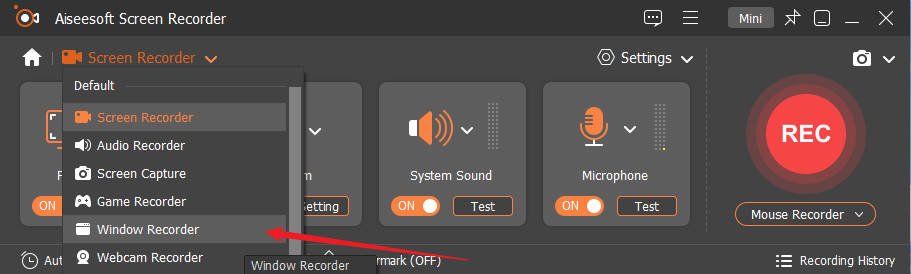
Launch the tool and choose Window Recorder, then select the window where the live stream is loaded.
Step 3:
Next, turn on the system sound option to capture the audio from the broadcast.

Step 4:
To set your preferred output settings, open the tabs indicated below:

Step 5:
Once everything is set, press Start, and when it's done, hit Stop. The recording will be saved on the default path.
OBS Studio
If you want a more flexible option, then check out OBS. It is a screen recording and live stream tool. It can record your streams while they're ongoing. It also offers various plugins that let you edit and manage your recordings.

💡 To know more about screen recording and streaming via OBS, check out these guides: OBS Screen Recorder: How to Record Your Screen Like a Pro
VLC Media Player & QuickTime Player
If you have no interest in installing third-party apps, then you can use the built-in programs on Windows and Mac. VLC and QuickTime are both media manager tools that offer a screen recorder feature.
They may have differences, but their screen recording functions are almost similar. Both offer a simple way to capture screens and record audio from microphones; they also have basic editing tools. However, by default, these two don't support system sound recording; to do so, plugins and extra setup are required.
💡 To know more about screen recording via VLC and QuickTime, check out these guides: How to Capture Screen with VLC Media Player & How to Screen Record on Using QuickTime
ScreenApp.io
A simple yet powerful tool that can record screen activities via your browser, making it ideal for quick captures on laptops or PCs. Just like most screen recorders, this one also has basic editing tools, and it has fast export options, perfect for on-the-go users.
Apowersoft Free Online Screen Recorder
This next one offers more advanced features compared to some web-based live screen recorders. It's perfect for capturing live streams, online meetings, or video lessons directly from your browser. It also supports system sound and microphone audio.
For Android
Swipe down to reveal the control panel, choose Screen Recorder. Press start, then open the app where the live stream is.
You can also install third-party apps:
⬇️ XRecorder
For iPhone/iPad
Go to the Control Center, then choose Record. The recording will automatically start after that. Load the live stream and press Stop when it's done.
To access more features, you can also try:
⬇️ Record It!: Screen Recorder
⬇️ Go Record
How to Choose the Right Live Stream Recorder
To capture the best screen recordings, you have to pick the right live stream recorder. To do that, you have to know the must-haves of a good screen capture program. To help you out, we listed them in this section. Check it out!
✅ Aim for at least 1080p output quality.
✅ The program should operate seamlessly with your OS or browser.
✅ It should support system sound and microphone capture.
✅ Check if the tool adds a watermark.
✅ See if it has wide format support. It should at least support MP4 or MOV.
Final Thoughts
Recording live streams is easy once you have the right tool. Whether you use OBS Studio, WidsMob Screen Recorder, or an online live stream recorder, you can save your favorite moments in full quality.
Just remember to record responsibly, always respect platform rules and creators’ rights while keeping your recordings for personal use.