


Top 5 Best Screen Recorders with Internal Audio
Last Updated on November 28, 2025 by Rhea Cabalida
Adding audio to your screen recordings can enhance them in several ways, which is why it's important to use a screen recording tool that supports system audio recording.
An internal audio recorder or system sound recording is a feature in some screen recording tools that captures audio from your computer, such as app or game sounds, or audio from a movie or music video.
Now, if you’re looking for a reliable tool that can screen record with sound, then this is the page for you. In this guide, we will explain what internal audio is, why it matters, how to record it properly, and which tools work best on PC and Mac. Read on!

What Is a Screen Recorder with Internal Audio & Why It Matters
The internal audio recording or system sound feature on screen recording programs is responsible for including sounds that are produced by your computer, instead of relying only on your microphone. The sounds can either come from apps, websites, etc.
This feature is ideal for making tutorials, recording gameplay, or capturing online meetings. Using a screen recorder with internal audio produces clean, noise-free audio for tutorials, demonstrations, or gameplay.
Okay, there are a lot of screen recording tools that offer system audio recording, and to make things easier, we made a short list of the top programs that you should try. Check out the next parts.
WidsMob Capture
To record high-quality audio and capture your screen in a clean and crisp resolution, we highly recommend using WidsMob Capture. This amazing tool offers an easy way to record your screen while simultaneously capturing the system audio.

Key Features:
- Screen, system sound, mic, and webcam recording
- Live annotation
- Video editing tools
- HD and 4K resolution
- Wide output format support
Why use WidsMob?
This tool also offers an accessible interface, making it ideal for beginners and professionals. It's perfect for quick captures or long recording projects. Try it out now!
How to Record Screen with Internal Audio via WidsMob Capture
Step 1:
Click the button below to download and install WidsMob on your computer.
Step 2:
Launch the program, then set the recording area.

Step 3:
Turn on the system sound option to capture your screen’s audio.

Step 4:
When everything is set, press Record to start.
💡 Tip: Test out the audio before the actual recording to check audio clarity and timing.
OBS Studio
If you want to screen record with sound for free, then check out OBS Studio. This program is popular among gamers and streamers as it also supports live streaming. It combines its powerful features to let users produce one-of-a-kind recordings and streams.

Key Features:
- Records mic and system sound simultaneously
- Supports WAV and AAC formats
- Bitrate up to 320 kbps
- Supports Windows, macOS, and Linux
- Free and open-source
- 4K resolution support
Why use OBS Studio?
It's totally free to use! The audio quality is one of the best among competitors. OBS also offers plugins to access additional features.
💡 For the full guide on how to record your screen using OBS, check out this guide: OBS Screen Recorder: How to Record Your Screen Like a Pro
EaseUS RecExperts
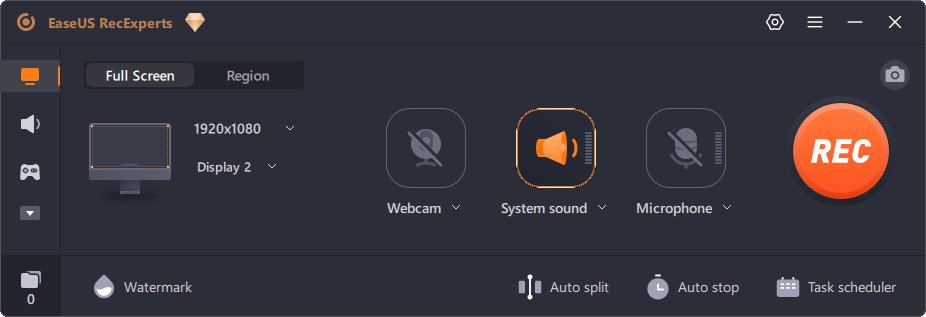
Another great option for a screen recorder with sound is RecExperts. It has combined amazing features into one program to help users record various screen activities without hassle. Its internal system recording is quite reliable and can be used without complex setups.
Key Features:
- Record mic and system audio
- Flexible format and bitrate selection
- Noise suppression
- Editing tools
Why use RecExperts?
It's a great tool for recording meetings, lectures, and seminars as it is proven to capture crisp and clear audio.
Bandicam
Bandicam is another screen recorder with audio that is built with an accessible interface. This is lightweight, but it offers features that can create professional-grade outputs.

Key Features:
- Supports internal and external audio recording
- Adjustable bitrate up to 320 kbps
- Hardware acceleration
- Real-time audio-video sync
Why use Bandicam?
Lightweight and reliable, Bandicam produces clear recordings without lag or performance drops.
💡 Bandicam includes watermarks on your recordings, if you want to know how to remove it, read here: The Most Detailed Guide to Remove Bandicam Watermark
Movavi Screen Recorder
For those who prefer a straightforward and user-friendly screen recorder with audio, check out Movavi Screen Recorder. It's perfect for beginners who want to screen record tutorials, gameplay, and online lectures.

Key Features:
- Captures internal and external audio
- Audio bitrate up to 320 kbps
- Exports in MP4, MKV, MOV
- Noise reduction feature
- Built-in audio and video editing tools
Why use Movavi Screen Recorder?
It can be operated by beginners with no issues and is ideal for both quick and professional screen recording purposes. Plus, the audio bitrate it offers will produce an amazing sound quality.
💡 If there's no audio feed on your recordings, there must be something wrong with your computer settings, source set up, or the program itself. To identify the cause and how to fix it, read this guide: How to Fix "No Sound" Issues on Screen Recordings
What to Look for in a Screen Recorder with Internal Audio
If you’re not sure which screen recording program to pick, here’s a guide to help you out. Below are the qualities that a good recording tool should have to ensure that you’ll be able to capture high-quality audio.
🔉 Multiple audio source option: Aside from system audio, the program should also support mic recording.
📁 Bitrate and format: A tool should offer 128 kbps to 320 kbps, and support common audio formats such as MP3, AAC, and WAV.
🔇 Noise reduction: To remove background noise and for a clearer audio output.
🎥 Video-audio sync: To make sure that the screen recording is aligned with the audio.
✂️ Editing tools: To trim and adjust audio volume.
Conclusion
Using a screen recording that can record internal audio is really a lifesaver; it makes adding sounds and voice-overs to projects faster and more convenient.
Among the five tools mentioned above, we highly suggest using WidsMob as it offers all the features you need. Try it out!