


The Ultimate Guide for The Best Screen Recorders for Linux
Last Updated on November 13, 2025 by Rhea Cabalida
To create professional-level tutorials or record high-quality gameplay on your Linux computer, you need a reliable screen recorder.
Since Linux differs significantly from other operating systems like Windows and macOS, finding tools like a screen recorder for Linux can be challenging. Thanks to technological advancements, Linux has come a long way, and we now have open-source screen recorders that offer powerful features similar to those found on Windows or macOS.
If you want to know the best Linux screen recorder tool, don’t leave this page. In this guide, we’ll explore the best screen recording software for Linux, how to use it effectively, and practical tips to improve your recordings.

In this Article:
What to Look for in a Linux Screen Recorder
To make sure that you pick the right screen recorder for Linux, there are certain qualities that a tool should have. These qualities will help you achieve better outputs.
User-friendly interface: If you’re a beginner or a pro at screen recording, it's better to have a tool that can be easily operated and has an accessible interface. This will help your workflow run faster and avoid retakes.
Output quality & format: Look for tools that offer resolutions from 1080p up to 4K to achieve a high-quality recording. A good Linux screen recorder should also support various video formats such as MP4, MKV, or WebM.
Performance efficiency: To avoid errors and lags, we highly suggest picking a tool with minimal use of CPU and GPU resources.
Audio & webcam support: Aside from screen recording, look for tools that allow webcam and audio recording. It should also support recording all sources/feeds simultaneously.
Compatibility: Since Linux has multiple environments (GNOME, KDE Plasma, XFCE), choose a tool that works well with your current system. Don’t worry, in the next part, we will mention which tool works for which Linux system.
1. OBS Studio
OBS is one of the most popular open-source screen recorders on the web. It is widely used among online creators and streamers as it can be used for live streaming as well. OBS is free to use and highly customizable. There are also plugins you can install to further use the tool’s full potential.

🔥 Key Features:
- Captures multiple sources: window capture, webcam, audio, etc.
- Custom scenes and transitions
- Built-in streaming integration with various platforms (YouTube, Twitch, & Facebook Live)
- Hardware encoding (NVENC, VAAPI)
🌐 Supported Environments:
- GNOME (X11 & Wayland)
- KDE Plasma
- XFCE
- Works on most major distros (Ubuntu, Fedora, Arch, Debian)
💡 For the full review about OBS's features and functions, read here: OBS Screen Recorder: How to Record Your Screen Like a Pro
2. Simple Screen Recorder
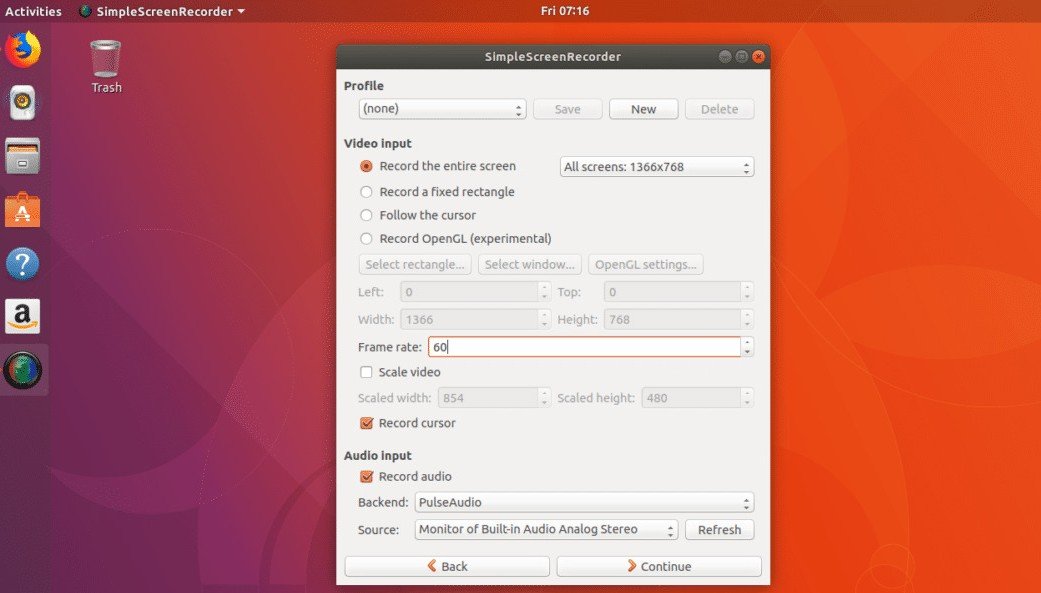
As the name implies, this Linux screen recorder offers a simple yet effective way to record your screen. Simple Screen Recorder is a lightweight and user-friendly program that works on almost every Linux system; it even works on computers with low specs. This is recommended for beginners and those who are testing out screen recorders.
🔥 Key Features:
- Lightweight with minimal CPU and RAM consumption
- Live preview feature
- Wide format support (MP4, MKV, OGG, WebM)
- Customizable video specification (frame rate, resolution, codec, etc.)
- Full-screen and window recording
🌐 Supported Environments:
- GNOME (X11)
- XFCE
- LXDE
- Wayland (limited)
3. Kazam
If you’re looking for another screen recorder for Linux that is similar to OBS, then check out Kazam. It is a screen recording and live stream program in one. However, its features are not as extensive as compared of OBS, but it is still a great choice for quick screen captures, video tutorials, and short demos. It is straightforward and has a simple interface, perfect for beginners.

🔥 Key Features:
- Minimalist interface
- Supports screen, system audio, and mic recording
- Wide format support (MP4, WebM, AVI, etc.)
- Live screenshot capture
🌐 Supported Environments:
- GNOME (X11)
- Cinnamon
- XFCE
- Ubuntu-based distros.
4. VokoscreenNG
You might have heard about Vokoscreen; well, it has a newer and upgraded version: VokoscreenNG. This tool has the basic screen recorder features, plus a magnifying option that lets you zoom in on any part of the screen. VokoscreenNG also retained its simple interface.

🔥 Key Features:
- Built-in magnifier
- Countdown before recording
- Multiple output formats and codec support
- Records desktop, webcam, and microphone
🌐 Supported Environments:
- KDE Plasma
- GNOME (X11 & Wayland)
- MATE
- XFCE
5. Peek
Peek is a simple yet powerful Linux screen recorder perfect for recording short clips. It’s popular among developers and testers who need to record quick snippets of their screen without the complexity of full video editors.

🔥 Key Features:
- Supports screen, mic, and webcam recording
- Auto-trim feature to remove idle frames
- Allows resizing capture frames
🌐 Supported Environments:
- GNOME (X11 only)
- XFCE
- Cinnamon
- Wayland (limited)
Tips for Better Screen Recording on Linux
Here are some tips you can follow to optimize your screen recording experience on Linux.
- Close background apps and unused windows to free up your system resources.
- Use an external microphone for a clearer audio feed.
- Set recording resolution from 1080p up to 4K for a sharper output.
- Check your storage, especially if you're recording long footage. Free up some space if possible.
- Edit videos afterward using tools like Kdenlive or Shotcut for trimming or adding effects.
By following these tips, you will achieve a high-quality screen recording and avoid possible errors.
Look Here! Best Mac & Windows Screen Recorder
If you’re also looking for a good screen recording tool for Windows and macOS, then check out WidsMob Capture.

This program is one of the most trusted screen capture tools of today. It's packed with powerful features to help you create professional-grade screen recordings.
WidsMob offers:
- Record screen up to 4K
- Supports webcam, system audio, and mic recording
- Built-in video editor
- Multiple audio and video formats
- Access to output settings
- Accessible and user-friendly interface
For recording high-quality clips on your Windows and Mac, choose WidsMob Capture!
Final Thoughts
Whether you’re a content creator, teacher, or gamer, these screen recorders for Linux make it easy to record, edit, and share your videos effortlessly. If you also use Windows or Mac, check out the tool we recommended. It also offers great features and the best results.