


An ImageGlass Unbiased Review (2026): Is It Still Worth Using?
Last Updated on June 16, 2026 by Peter Wood
In 2026, the default Windows photo experience is increasingly tied to cloud-connected features like OneDrive and iCloud integration. For users who prefer a local-first, privacy-focused alternative that stays out of the way, ImageGlass offers a simple fix.
The application removes background bloat to focus entirely on folder-based browsing speed and broad format support, including HEIC and RAW files. However, if your workflow requires deep batch processing or heavy library organization, other dedicated tools will fit your needs better. This review explains where ImageGlass excels, where it falls short, and exactly when you should look elsewhere.

In this Article:

WidsMob Viewer Pro
WidsMob Media Viewer - View single image, multiple images, folder-based images, and videos in incredible fast speed and simple operation with various viewing modes. You can browse all your photos (including RAW files) and videos in one window without extra clicking and operating.
What Is ImageGlass?
ImageGlass is a free Windows image viewer built for speed and simplicity. It focuses on opening and browsing image files without the extra features found in photo editors or media managers.
It supports many image formats, including:
- HEIC
- WebP
- SVG
- AVIF
- GIF
- Many RAW camera formats
It also includes:
- A clean interface
- Theme customization
- Slideshow support
- A portable version
Unlike larger photo applications, ImageGlass stays focused on image viewing.
Quick Technical Snapshot
| What to compare | Why it matters | What to check |
|---|---|---|
| Folder-open speed | Shows how quickly the viewer gets out of the way | How long does it take to open a large folder of mixed images |
| Idle memory use | Helps you see how lightweight the app feels | Check Task Manager after launch and after opening a few files |
| Back-and-forth navigation | Reveals whether caching is helping | Move through the same folder repeatedly and watch responsiveness |
| Format coverage | Prevents unsupported-file friction | Test HEIC, RAW, SVG, WebP, AVIF, and GIF files |
How We Tested ImageGlass
We tested ImageGlass on Windows 11 using a mix of Sony ARW, Nikon NEF, HEIC, WebP, SVG, PNG, and JPEG files to evaluate real-world performance.
Our testing included opening large image folders, browsing hundreds of files, viewing EXIF data, navigating RAW photos, and comparing responsiveness with Microsoft Photos.
ImageGlass consistently opened images quickly and remained responsive, especially when browsing RAW files and mixed-format folders, where Microsoft Photos occasionally paused while generating previews.
Overall, ImageGlass performed best as a lightweight image viewer focused on fast local file browsing rather than photo editing or asset management.
ImageGlass Features and Real-World Benefits
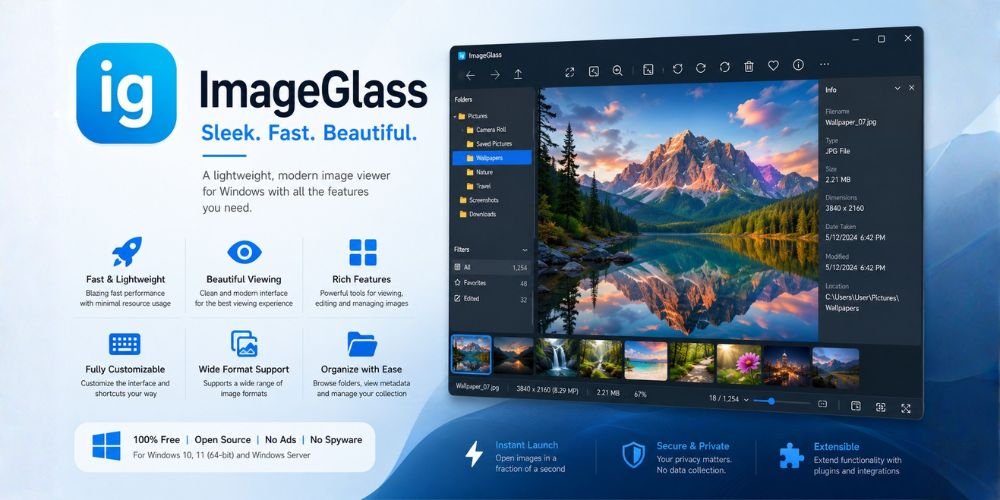
ImageGlass focuses on one job: helping you open and browse images quickly without the extra complexity of a full photo management application. Instead of overwhelming users with editing tools, cloud integrations, and media libraries, it prioritizes speed, format compatibility, and a straightforward viewing experience.
Broad Image Format Support
One of ImageGlass's strengths is its ability to open a wide range of image formats. Whether you're viewing photos from a smartphone, DSLR, mirrorless camera, design application, or website download, ImageGlass can handle most common formats without requiring additional plugins or software.
Clean Interface for Fast Browsing
Many image viewers gradually become cluttered as new features are added. ImageGlass takes a simpler approach. The interface keeps the image front and center while placing controls within easy reach. Navigation feels intuitive, making it easy to move through folders, compare images, and review large groups of files without distractions. This simplicity is particularly useful when sorting photos, reviewing project assets, or quickly checking reference images.
Thumbnail Browsing and Slideshows
ImageGlass includes thumbnail previews that make folder navigation much faster. Instead of opening files individually, you can quickly scan a collection and jump directly to the image you need.
The slideshow feature is equally practical for:
- Reviewing photo collections
- Presenting images to clients or colleagues
- Casual viewing of personal photo libraries
EXIF and Image Information Tools
For photographers and enthusiasts, ImageGlass provides access to image metadata, including EXIF information. This allows you to check details such as camera model, shutter speed, ISO, aperture, and image dimensions without opening dedicated editing software. When reviewing photos from multiple shoots, having this information readily available can save considerable time.
Customization Options
ImageGlass offers more customization than many lightweight viewers. Users can personalize themes, icons, layouts, keyboard shortcuts, and general viewer behavior. These options help tailor the application to individual preferences and can improve efficiency for users who spend a lot of time reviewing images.
Portable Version Support
For users who prefer software that does not require installation, ImageGlass is also available as a portable application. This makes it a practical option for IT professionals, technicians, users working across multiple computers, and anyone who prefers carrying software on portable storage devices. Because it can run independently of a traditional installation, ImageGlass remains flexible for both personal and professional environments.
Best Use Cases for ImageGlass
ImageGlass is particularly well-suited for:
✔️ Viewing screenshots and downloaded images
✔️ Browsing personal photo collections
✔️ Previewing RAW and camera files
✔️ Reviewing design assets and reference graphics
✔️ Users who prefer folder-based file management
✔️ Anyone looking for a lightweight alternative to Microsoft Photos
If your primary goal is opening, viewing, and navigating images as quickly as possible, ImageGlass delivers a focused experience without unnecessary complexity.
Limited Batch Processing
Batch processing is not a core strength. Users who regularly rename files, resize images, convert formats, or organize large image sets will likely benefit from dedicated batch-processing software instead.
Basic Editing Rather Than Workflow Management
ImageGlass includes basic image actions, but it is not a photo editor or digital asset manager. As collections grow into hundreds or thousands of files, structural organization tools become more important than simple viewing speed.
Not Designed as a Complete Media Hub
Many users manage more than images. They also work with videos, PDFs, and other document types. Because ImageGlass focuses strictly on images, mixed-media workflows often require additional software to handle other file types.
Turn On Cache Acceleration
Cache acceleration helps ImageGlass keep recently viewed images ready in memory, so it does not have to reprocess everything each time you move back and forth through a folder. In simple terms, it trades a little extra memory use for smoother browsing.
To adjust it:
- Open ImageGlass.
- Go to Settings.
- Open the Image section.
- Find Cache Acceleration.
Start with a middle setting, then increase it gradually if you work with large folders or high-resolution images. If you browse huge RAW collections, a higher cache can make navigation feel faster. If your system has limited RAM, keep it lower so the app stays light.
Organize Large Libraries Before You Browse
ImageGlass performs best when your folders are already tidy. A simple structure helps reduce system overhead:
✔️ Keep each project in its own folder.
✔️ Avoid dumping thousands of files into one directory.
✔️ Separate RAW files, final exports, and reference images when possible.
This reduces loading overhead and makes thumbnail navigation much faster.
Customize Navigation Settings
Small adjustments can improve daily efficiency. Useful settings to review include zoom behavior, thumbnail preferences, custom layout choices, and keyboard shortcuts. These changes reduce the number of clicks needed for common tasks.
Use the Portable Version for a Lightweight Setup
If you switch between computers or do occasional troubleshooting work on different machines, the portable version is worth keeping on a flash drive. It avoids a full Windows installation while giving you the same quick viewing workflow.
Is ImageGlass the Right Choice for Your Workflow?
ImageGlass occupies an interesting space in the photo software landscape. It excels at what it was designed to do: open images quickly, support a wide range of formats, and provide a clean viewing experience without unnecessary complexity. For users who simply need a fast and reliable image viewer, it remains a strong choice.
However, choosing the right software ultimately depends on how you work with your files. If your needs extend beyond viewing into organizing, managing, or processing large collections of media, it is worth exploring other options that offer a broader set of tools.
ImageGlass vs. Microsoft Photos
Microsoft Photos is the default Windows option.
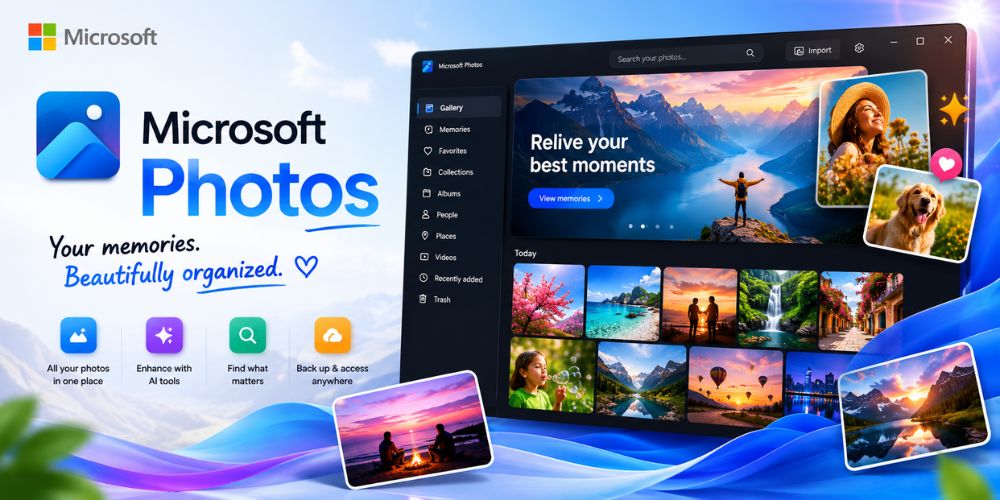
Choose Microsoft Photos if you need: Photo organization albums, basic color editing, video support, and automated cloud integration.
Choose ImageGlass if you want: Faster image viewing, less interface clutter, and a local viewing-focused experience.
ImageGlass vs. XnView MP
XnView MP targets users managing large image collections.

Choose XnView MP if you need: Advanced metadata tools, extensive format support, batch conversion, and asset management features.
Choose ImageGlass if you prefer: Simplicity, minimal toolbars, and straightforward browsing speed.
ImageGlass vs. IrfanView
IrfanView remains a popular lightweight image utility for Windows.

Choose IrfanView if you frequently use: Heavy batch processing, manual file conversion scripts, and utility-focused workflows.
Choose ImageGlass if you prefer: A modern, clean interface layout.

Best ImageGlass Alternatives for Different Users
| User Type | Recommended Tool |
|---|---|
| Casual Windows users | Microsoft Photos |
| Power users and archivists | XnView MP |
| Batch-processing workflows | IrfanView |
| Folder-based media management | WidsMob Viewer Pro |
| Lightweight image viewing | ImageGlass |
Conclusion
The core issue is choosing the right tool for your specific workflow. ImageGlass is not designed to be a complete photo editor or a media database. Instead, it offers a fast, simple path for opening and browsing local image files without extra platform drama. For users who want a clean interface, broad format support, and local folder navigation, it remains an easy recommendation.