


How To Use Quick Look On Mac: Features, Shortcuts, And When To Use An Alternative
Last Updated on June 22, 2026 by Rhea Cabalida
Most Mac users do not need a heavier app just to inspect one file. Quick Look solves that problem in seconds. Press Spacebar to open a file instantly, then use Preview for deeper PDF and image work, QuickTime Player for simple video trimming, and some workflows eventually need more than file preview.

When Quick Look Is Enough On Mac
For many everyday tasks, Quick Look eliminates the need to open a dedicated application. A quick preview is often enough to decide whether a file should be opened, shared, moved, or deleted. It opens from Finder with a shortcut, previews photos, videos, PDFs, audio files, and office documents, and handles light actions like markup, rotation, and trimming.
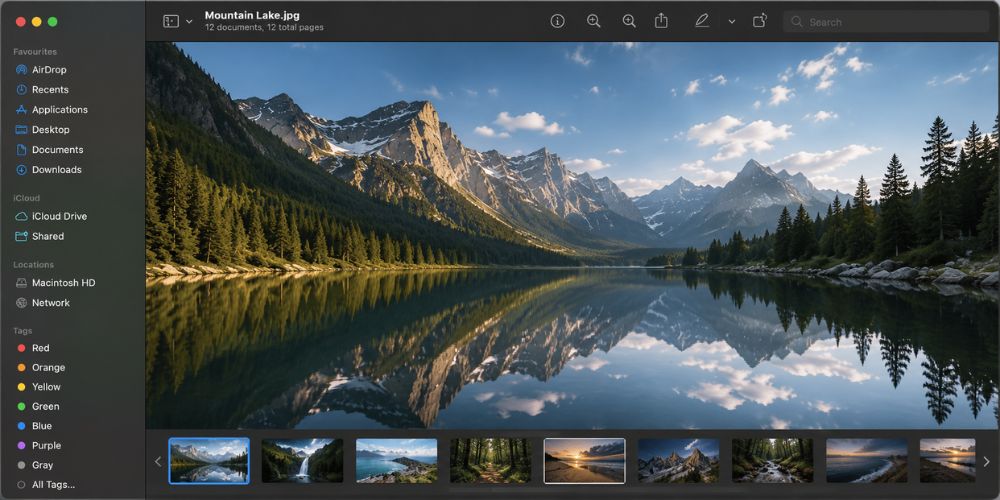
Use Quick Look when you need to:
- Check a photo before opening the editor
- Skim a PDF without leaving Finder
- Preview a video clip
- Confirm the contents of a folder
- Make a small visual adjustment before sharing
The shortcut keeps the current file selection active, making it easier to review multiple files in sequence.
What Quick Look Can Preview
Quick Look supports a wide range of common file types on Mac. The built-in viewer can open documents, photos, videos, audio files, and a few extra formats without forcing a separate app to open first.
Support for RAW photos is especially useful for photographers because Quick Look can display many camera formats directly in Finder without importing files into a photo editor first.
Documents
Quick Look can preview iWork documents, Microsoft Office files, text files, and PDFs. That is enough for fast document review before a user decides whether deeper editing is necessary.
Photos
Quick Look can preview standard photo formats, RAW files, and Live Photos. That gives Mac users a quick way to verify images from a camera or phone.
Videos And Audio
Quick Look can preview most audio files, plus common video formats such as MP4 and MOV. The player is basic, but the preview is quick and reliable for everyday use.
Other File Types
Quick Look can also preview HTML files and some other supported formats. The source also mentions USDZ files for iOS and iPadOS, so that note does not need extra weight in a Mac-focused guide.
Fast Ways To Open Quick Look
Step 1: Select a file in Finder and press the Space bar.
Step 2: Right-click a file and choose Quick Look.
Step 3: Select multiple files and preview them together.
Step 4: Use thumbnail or slideshow view when the selected files support those modes.
Why The Shortcut Matters
The Space bar shortcut keeps the file selection in place. That small detail makes Quick Look feel fast because the user stays in the folder view.
Markup
Markup is the most useful Quick Look feature for photos and PDFs. Users can draw, add text, add a signature, rotate, and crop without opening another app.
Thumbnail View
Thumbnail view becomes especially useful when reviewing similar images. Instead of opening files one by one, photographers and content creators can scan an entire selection from a single preview window.
Slideshow Mode
Slideshow mode works best when reviewing a batch of photos quickly. It can be faster than opening a photo management application for a simple image review session.
The slideshow option appears from the File menu while holding the Option key, and the shortcut is Command + Option + Y.
Video Trimming
Quick Look includes a trim button for supported video files. The user can drag the yellow handle, preview the change, and restore the original clip if needed.
Common Quick Look Limitations
Quick Look cannot adjust exposure, color, or white balance in RAW photos. Quick Look cannot edit document text, compare files side by side, batch process images, or manage large media collections. Those tasks require Preview or a dedicated media-management application.
Quick Look Vs Preview Vs QuickTime Player
Quick Look, Preview, and QuickTime Player solve different problems, even though the three tools overlap. Quick Look is for instant preview, Preview is for deeper document and image editing, and QuickTime Player is for basic video work.
Think of the three tools as different layers of the macOS workflow. Quick Look helps you inspect a file, Preview helps you modify a file, and QuickTime Player helps you make simple changes to video content.
| Tool | Best For | Main Strength | Main Limitation |
|---|---|---|---|
| Quick Look | Fast previews and light actions | Opens instantly from Finder | Not a full editor |
| Preview | PDFs and images | Stronger markup and document handling | Not built for folder browsing |
| QuickTime Player | Video trimming and playback | Simple movie edits and recording | Not a general media manager |
What is Preview
Preview is the better native choice when the task goes beyond a fast look. Apple still places Preview at the center of stronger PDF and image work, including signing forms and editing images more fully.
What is QuickTime Player
QuickTime Player remains the built-in Mac app for basic movie work. The app handles trimming, rearranging, rotating, splitting clips, and screen recording, so QuickTime Player still covers the simple video jobs well.

Best Fit For Mixed Media Workflows
WidsMob Viewer Pro becomes more useful when a folder contains hundreds of photos, videos, PDFs, or RAW files. Instead of opening each file individually, users can browse, compare, and organize content from a single interface. That is the main difference from Quick Look, which is built for previewing instead of managing a media library.
Where The Alternative Adds Value
WidsMob Viewer Pro adds value when a user needs more than a quick preview. The app can help with thumbnails, slideshow viewing, EXIF checks, compare views, and general media organization, so the workflow stays smoother when the file count gets high.
Which Tool Should You Use?
Choose the tool based on the job, not on habit. The fastest choice is not always the best choice.
➡️ Use Quick Look for quick file checks and light edits.
➡️ Use Preview for PDFs and image work that needs more control.
➡️ Use QuickTime Player for basic video trimming or screen recording.
➡️ Use WidsMob Viewer Pro when browsing, comparing, and managing folders matters most.
Simple Rule Of Thumb
If the task takes seconds, Quick Look is usually enough. If the task needs structured editing, open Preview or QuickTime Player. If the task becomes a folder-level media workflow, a dedicated viewer like WidsMob Viewer Pro fits better.
Pro Tip: Fix Quick Look When It Glitches
If Quick Look stops opening or starts acting oddly, relaunch Finder first. Open Activity Monitor, select Finder, and choose Force Quit, or use the Apple menu to relaunch Finder if that option is available. In many cases, that resets the preview service without a full Mac restart.
Another common fix is clearing Finder-related temporary issues by restarting the Mac. In many cases, Quick Look problems are tied to Finder rather than the file itself.
If the problem keeps happening, sign out and back in, or restart the Mac. That is the fastest way to clear a temporary preview bug without changing any files.
Final Takeaway
Quick Look remains one of the most useful Mac shortcuts because it solves the first problem fast: checking a file without opening a full app. Preview and QuickTime Player cover the next layer, while WidsMob Viewer Pro fills the gap for users who need one place to browse, compare, and manage mixed media more efficiently.