


What is RW2 Image and How to Open or Convert RW2 Files from Panasonic Camera
Last Updated on May 22, 2026 by Rhea Cabalida
RW2 files usually fail to open because Panasonic RAW photos need compatible software, not because the image is damaged. This is one of the main misconceptions by new Panasonic camera users, and most of the time, these RAW images get deleted because of that.
If you recently moved photos from a Panasonic Lumix camera to Windows or Mac and only see errors, blank previews, or unsupported file messages, you are dealing with a compatibility issue. The fastest solution is to use a RAW viewer that can preview, organize, inspect EXIF data, and convert files without forcing you into a full editing workflow.
The recommended viewers to open RW2 files are WidsMob Viewer Pro, Microsoft Raw Image Extension, and Adobe Camera Raw; these programs are tested and proven to solve different parts of that problem. Let's take a deep dive into these programs, solve the issue, and learn more about RW2.


WidsMob Viewer Pro
WidsMob Media Viewer - View single image, multiple images, folder-based images, and videos in incredible fast speed and simple operation with various viewing modes. You can browse all your photos (including RAW files) and videos in one window without extra clicking and operating.
FYI: What Is an RW2 File?
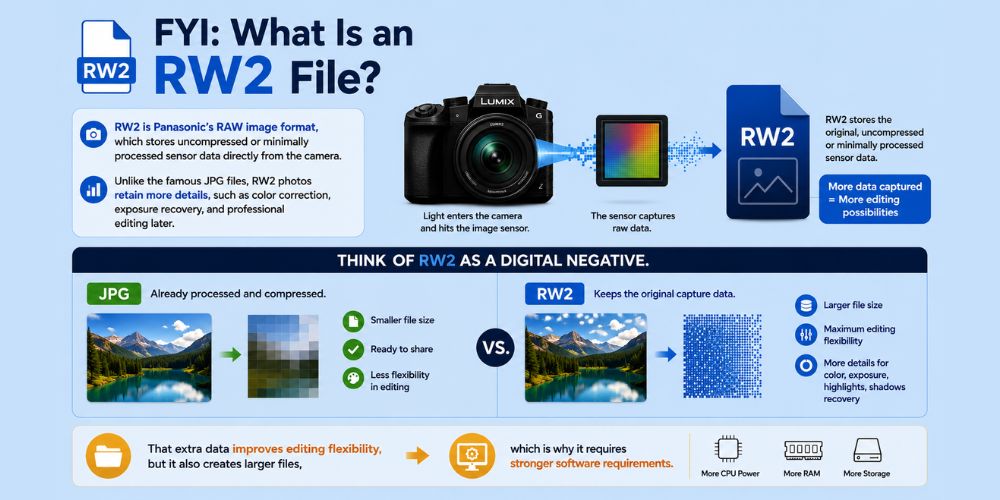
RW2 is Panasonic’s RAW image format, which stores uncompressed or minimally processed sensor data directly from the camera. Unlike the famous JPG files, RW2 photos retain more details, such as color correction, exposure recovery, and professional editing later.
Think of RW2 as a digital negative. A JPG is already processed and compressed, while an RW2 file keeps the original capture data from the camera sensor.
That extra data improves editing flexibility, but it also creates larger files, which is why it requires stronger software requirements.
Common Panasonic Cameras That Use RW2
While Panasonic Lumix cameras are set to save images as JPEG out of the box, they use the proprietary RW2 file format whenever RAW photo recording is enabled. Whether a software program can read these files depends entirely on the camera model and whether your editing software is updated to support it.
Popular examples that use the RW2 format include:
- Panasonic Lumix GH5
- Panasonic Lumix G9
- Panasonic Lumix S5
- Panasonic Lumix GX85
- Panasonic Lumix FZ1000
💡 Quick Tip: How to Check or Enable RW2
By default, Panasonic Lumix cameras often save images as JPEG to save space. To check your format or switch to RW2:
- Press [MENU/SET] to go to the Rec (camera icon) menu.
- Select Quality.
- Check the setting:
Fine / Standard: Saving as JPEG only.
RAW: Saving as RW2 only.
RAW+Fine / RAW+Standard: Saving both the RW2 file and a JPEG preview.
Note: If the Quality menu is greyed out, turn your physical mode dial away from Intelligent Auto (iA) and into a manual mode like P, A, S, or M.
Why RW2 Files Will Not Open
Okay, let's say you choose to save your RAW images as RW2 on your Panasonic camera, and now you want to open them on your computer, but the problem is, the RW2 file won't open.
Most default photo apps are designed for JPG and PNG files, not camera-specific RAW formats. As mentioned, RW2 is heavy, which is why it requires viewers who have certain specifications. That is why it won’t open if you use ordinary or default viewers.
Apart from that, here are other possible causes:
- Missing RAW codec or RAW support extension
- Unsupported Panasonic camera model
- Outdated photo viewer
- Corrupted transfer from the memory card
- Attempting to rename the file extension manually
Do not rename RW2 to JPG or PNG manually. Changing the extension does not convert the image and may confuse the operating system. Also, doing this may also corrupt the file.
Windows RAW Support Limitations
Windows can preview many RAW formats from cameras like Nikon, etc., through Microsoft Raw Image Extension, but support still depends on the camera model. Microsoft describes the extension as a native RAW viewing solution for supported digital cameras.
The extension works well for:
- Basic previews
- File Explorer thumbnails
- Simple Windows Photos viewing
The extension is not designed for advanced organization, batch conversion, or RAW workflow management.
While Microsoft offers a free 'Raw Image Extension' in the Windows Store, it often lacks updates for newer camera sensors, which is why a dedicated raw viewer or converter is necessary. If you want to further manage RW2 files, a dedicated and more advanced viewer is highly recommended.
Best Way to Open RW2 Files
WidsMob Viewer Pro works best for users who need a fast RW2 workflow instead of a full professional editing suite. WidsMob says the software supports RAW formats, EXIF inspection, folder browsing, slideshow playback, and batch conversion in one application.

That matters because most Panasonic users only want to:
- Open the files
- Review the shoot quickly
- Check image quality
- Convert selected photos
WidsMob Viewer Pro handles those tasks without forcing users into a large catalog-based editing system.
Key Features of WidsMob Viewer Pro
WidsMob Viewer Pro combines RAW file viewing and lightweight management tools in one interface. The software focuses on fast browsing and practical file handling instead of heavy editing workflows.
Main features include:
| Feature | Why It Helps RW2 Users |
|---|---|
| RAW support | Opens Panasonic RW2 and other RAW formats |
| Thumbnail browsing | Reviews large photo folders quickly |
| EXIF viewing | Checks ISO, shutter speed, lens data, and white balance |
| Full-screen mode | Inspects focus and image quality |
| Slideshow mode | Reviews shots without opening files individually |
| Batch conversion | Converts RW2 to JPG, PNG, or TIFF efficiently |
How to Open RW2 Files in WidsMob Viewer Pro
The simplest RW2 workflow is folder-based browsing instead of opening files one by one. WidsMob Viewer Pro automatically loads nearby images after importing a single file or folder.
Follow these steps:
Step 1: Install and launch WidsMob Viewer Pro.
Step 2: Drag an RW2 file or folder into the application.
Step 3: Use Thumbnail View to browse the shoot.

Step 4: Switch to Full Screen Mode for detailed inspection.

Step 5: Open EXIF View to check camera settings.
Use Thumbnail View for Faster Sorting
Thumbnail mode works best when reviewing hundreds of Panasonic RAW files from one shoot. Instead of opening each image manually, users can scan previews quickly and identify usable photos faster.
Use EXIF View to Check Camera Settings
EXIF mode displays the technical information stored inside the RW2 file. That includes ISO, aperture, flash settings, focal length, and white balance data.
EXIF inspection helps photographers diagnose:
- Motion blur
- Incorrect exposure
- White balance issues
- Lens settings
- Focus mistakes
How to Convert RW2 Files to JPG or PNG
RW2 conversion is useful when the image needs broader compatibility for sharing, uploading, or mobile viewing. JPG files are smaller and supported almost everywhere, while PNG files preserve more image quality.
To convert RW2 files:
Step 1: Open the RW2 folder in WidsMob Viewer Pro.
Step 2: Select the target images.
Step 3: Choose Batch Convert.

Step 4: Select JPG, PNG, or TIFF.
Step 5: Choose the output folder and quality settings.
Step 6: Start the conversion process.
Keep the original RW2 files whenever possible. RAW files preserve editing flexibility that JPG exports cannot recover later.
When Adobe Camera Raw Is the Better Option
Adobe Camera Raw and Adobe Lightroom are stronger choices for deep RAW editing and color grading. Adobe supports many Panasonic RW2 camera models and provides detailed RAW processing tools for professional workflows.
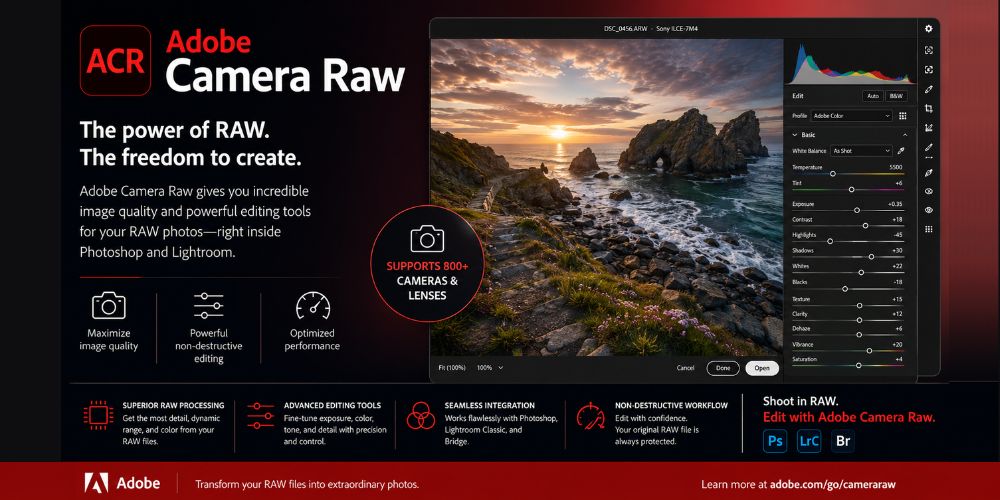
Choose Adobe tools when you need:
- Advanced color correction
- Layered editing workflows
- Noise reduction
- Professional RAW development
- Lightroom catalog management
Adobe tools are more powerful, but they also require a steeper learning curve than a dedicated viewer.
When to Use Adobe DNG Converter
Adobe DNG Converter is useful when compatibility matters more than immediate viewing. The converter changes camera-specific RAW files into the broader DNG format for long-term compatibility.
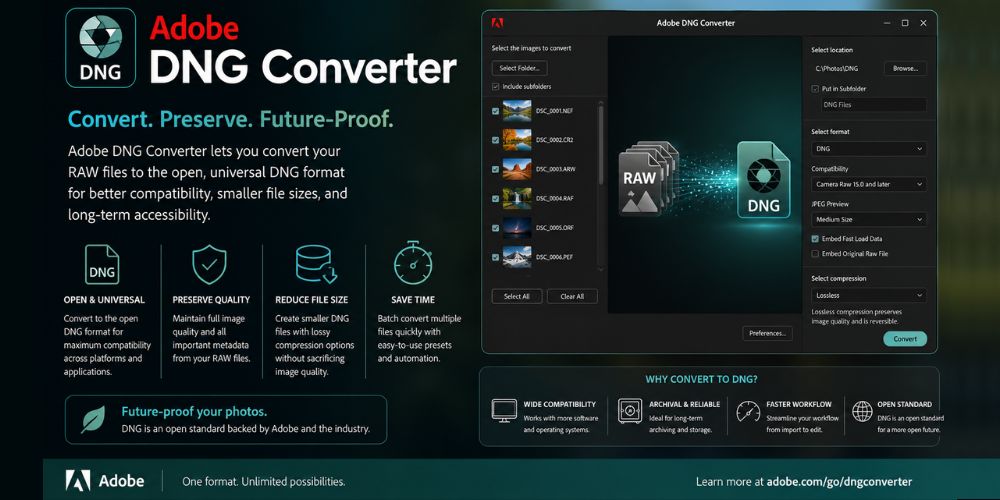
DNG conversion helps when:
- Older software cannot open newer RW2 files
- You want a more universal RAW archive format
- You need backward compatibility
Conclusion
RW2 files are normal Panasonic RAW images, but they require software designed for RAW photography workflows. Most opening errors happen because the default photo viewer lacks proper Panasonic RAW support.
For most users, WidsMob Viewer Pro is the fastest way to browse, inspect, organize, and convert RW2 files without jumping between multiple applications. Adobe Camera Raw remains the better option for advanced editing, while Microsoft Raw Image Extension works well for basic Windows previews, and Adobe DNG Converter handles compatibility-focused conversion.